Plans & billing
Compare the Invoicepak Free, Basic, Pro and Premium plans, see how the monthly invoice email limit works, and upgrade or downgrade your plan through Shopify.
Invoicepak has four plans: Free, Basic, Pro and Premium. This page covers what each plan includes, how the monthly invoice email limit works, what happens when you reach it, and how to change your plan.
Compare the plans
| Free | Basic | Pro | Premium | |
|---|---|---|---|---|
| Price | $0/month | $9.99/month | $19.99/month | $79.99/month |
| Invoice emails per month | 5 | 300 | 600 | Unlimited |
| Templates | The 6 starter templates | 6 starters + 3 of your own (9 in total) | Unlimited | Unlimited |
| Automatic invoices for new orders | ✓ | ✓ | ✓ | ✓ |
| Download and print PDFs (no limit) | ✓ | ✓ | ✓ | ✓ |
| Print from Shopify orders | ✓ | ✓ | ✓ | ✓ |
| Template editor | ✓ | ✓ | ✓ | ✓ |
| PDF content and page setup | ✓ | ✓ | ✓ | ✓ |
| Attach PDF to emails | ✓ | ✓ | ✓ | ✓ |
| Custom email Subject, Message body and Reply-to email | – | ✓ | ✓ | ✓ |
| Full branding: logo, phone, email, website, tax number | – | ✓ | ✓ | ✓ |
| Resend several invoices at once (bulk resend) | – | ✓ | ✓ | ✓ |
| Send from your own email domain | – | – | – | ✓ |
| Priority support | – | – | – | ✓ |
The template count includes every template in your list, including the starters. On Free you can still edit the 6 starters. To make a new template or a duplicate, delete one first. See How many templates can I have?
Where each feature is set up:
- Subject, Message body, Reply-to email: Invoice automation & customer email
- Branding fields: Business details
- Bulk resend: Resend emails in bulk
- Own email domain: Send from your own email domain
Open the Billing page
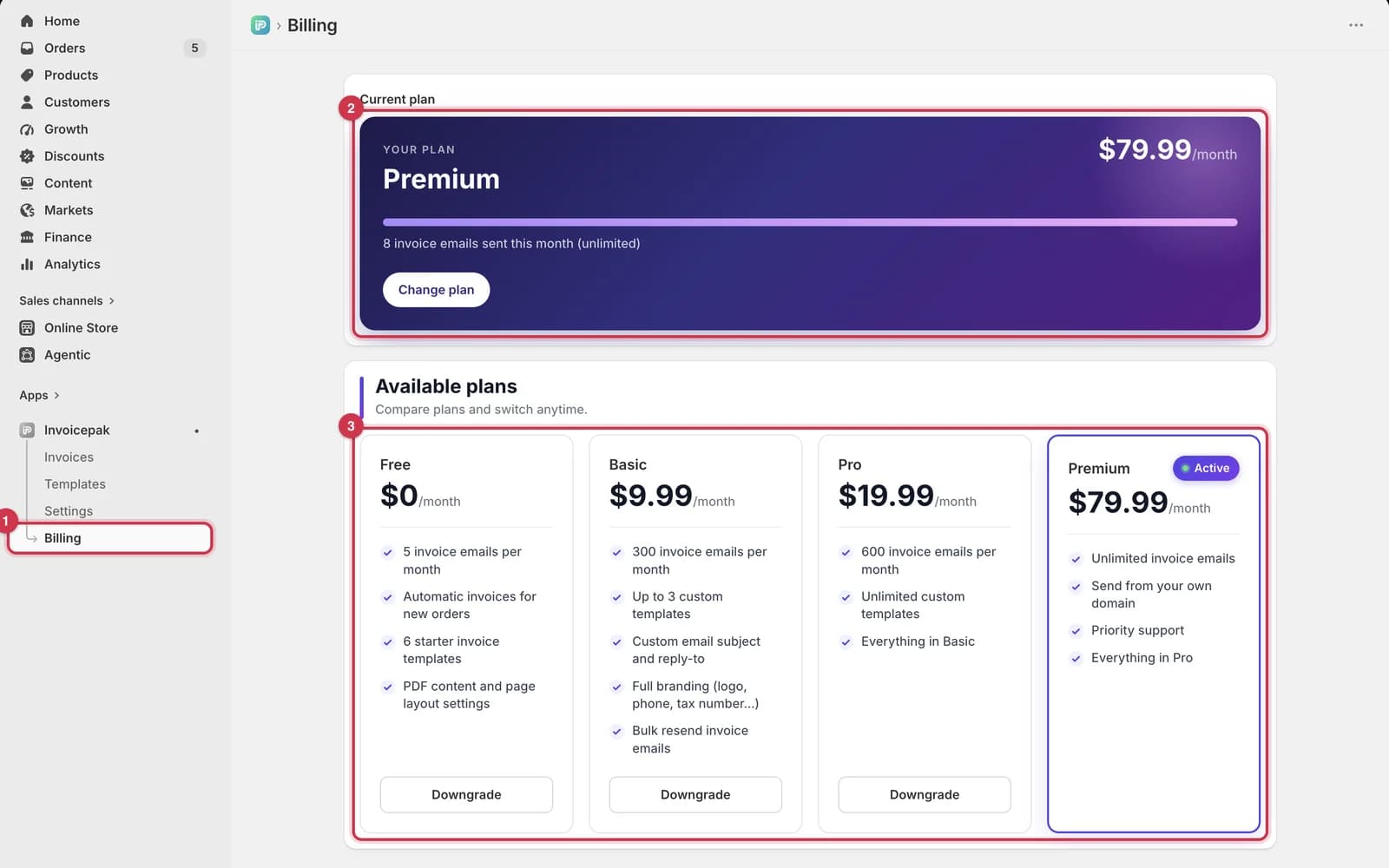
- In the Shopify admin sidebar, under Invoicepak, click Billing.
- Current plan shows your plan and this month's usage.
- Available plans compares the four plans.
You can also reach Billing from the View plans button on the Dashboard, and from the Upgrade to … links next to locked features.
Your current plan and usage
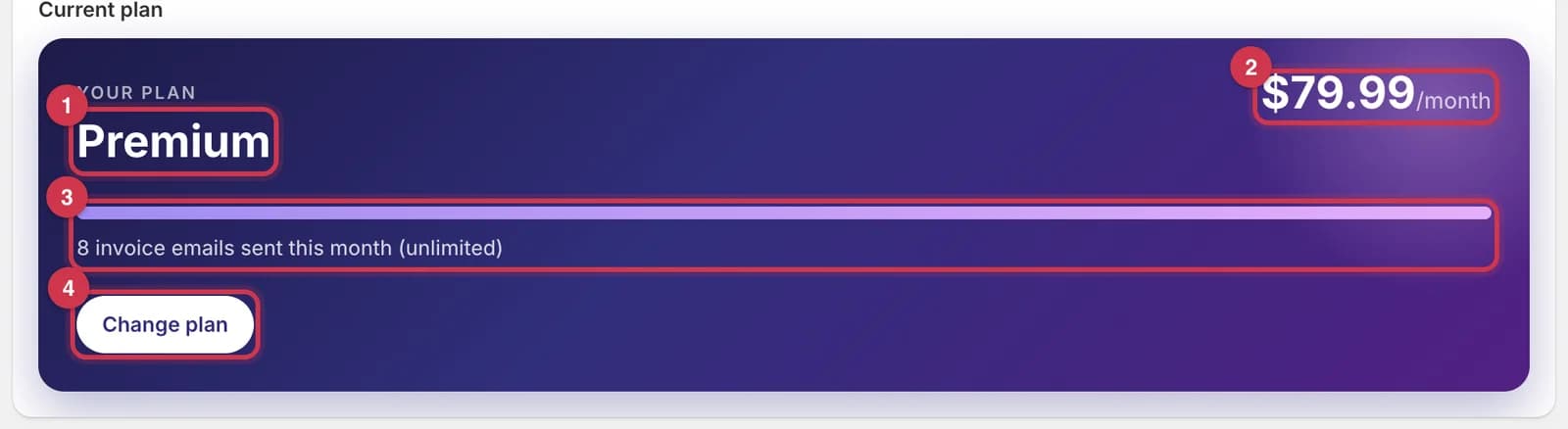
| # | Part | What it shows |
|---|---|---|
| 1 | Plan name | The plan you're on now, such as Premium. |
| 2 | Price | What the plan costs per month. |
| 3 | Usage meter | How many invoice emails you've sent this calendar month, for example 120 of 300 invoice emails sent this month. The bar turns amber at 80% and red at 100%. On Premium the bar is always full and the line says (unlimited). |
| 4 | Change plan | Opens Shopify's plan page, where you choose a new plan. See Change your plan. |
The usage meter refreshes by itself every 15 seconds while the page is open, and again whenever you come back to the tab.
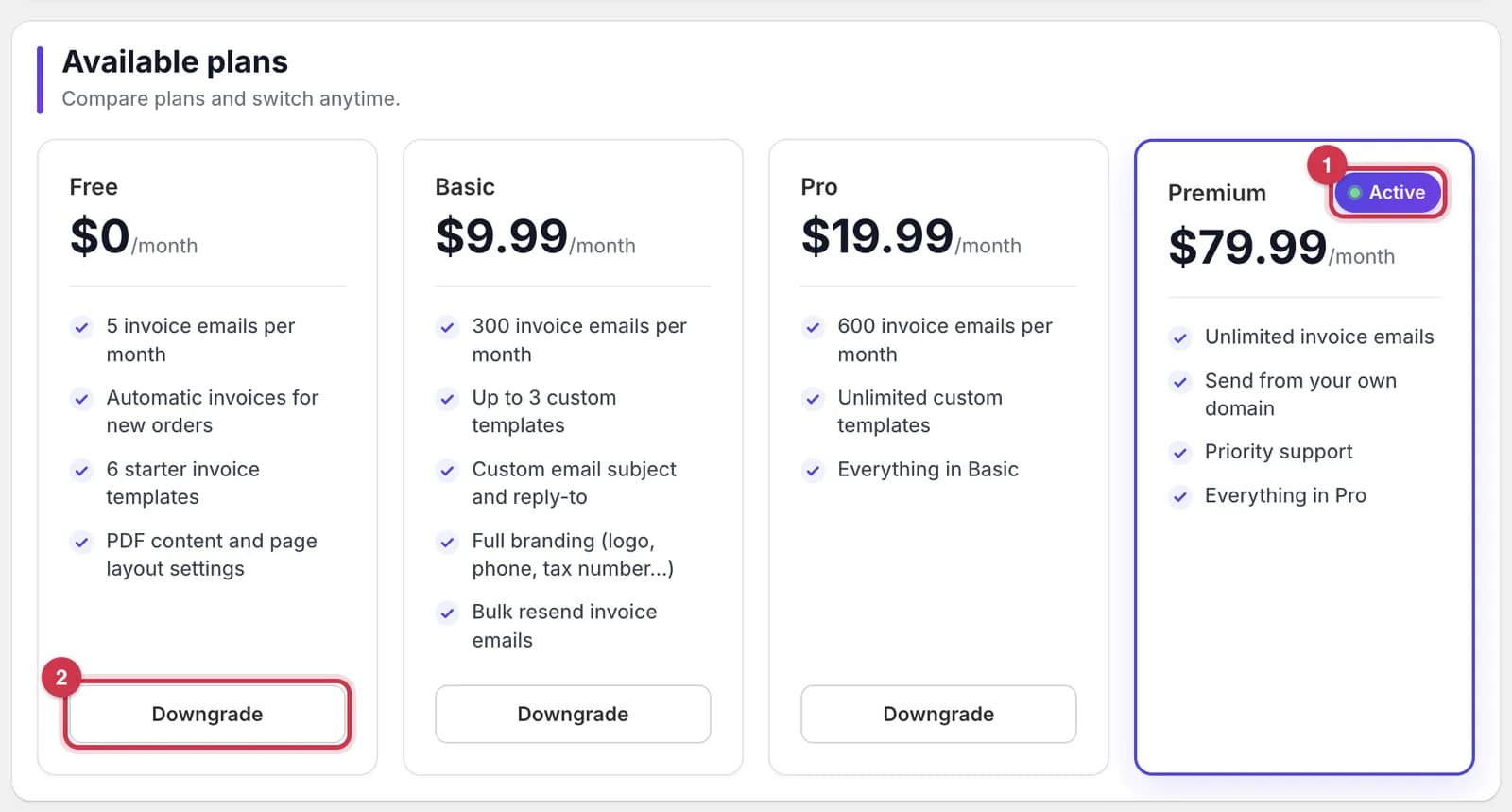
- Under Available plans, your plan's card has a purple border and an Active badge.
- Every other card has an Upgrade or Downgrade button. See Change your plan.
Each card lists the plan's price and its main features.
What counts towards your limit
Your limit is a number of invoice emails per calendar month. It starts again from zero on the 1st of each month. Unused emails don't carry over.
| Counts as one email | Doesn't count |
|---|---|
| An invoice sent automatically when an order is created | Downloading a PDF |
| Resend on the Invoices page | Printing a PDF, from Invoicepak or from a Shopify order |
| Each invoice in a bulk Resend | Send test email in the template editor |
| Retry on a failed invoice that then sends | An email that fails to send |
| Send invoice email on a Shopify order | Orders with no customer email (no email is sent) |
The Invoices sent card on the Dashboard uses the same count as the usage meter.
When you reach your limit
When you've used all your invoice emails for the month, the Billing page shows a red meter and a warning:
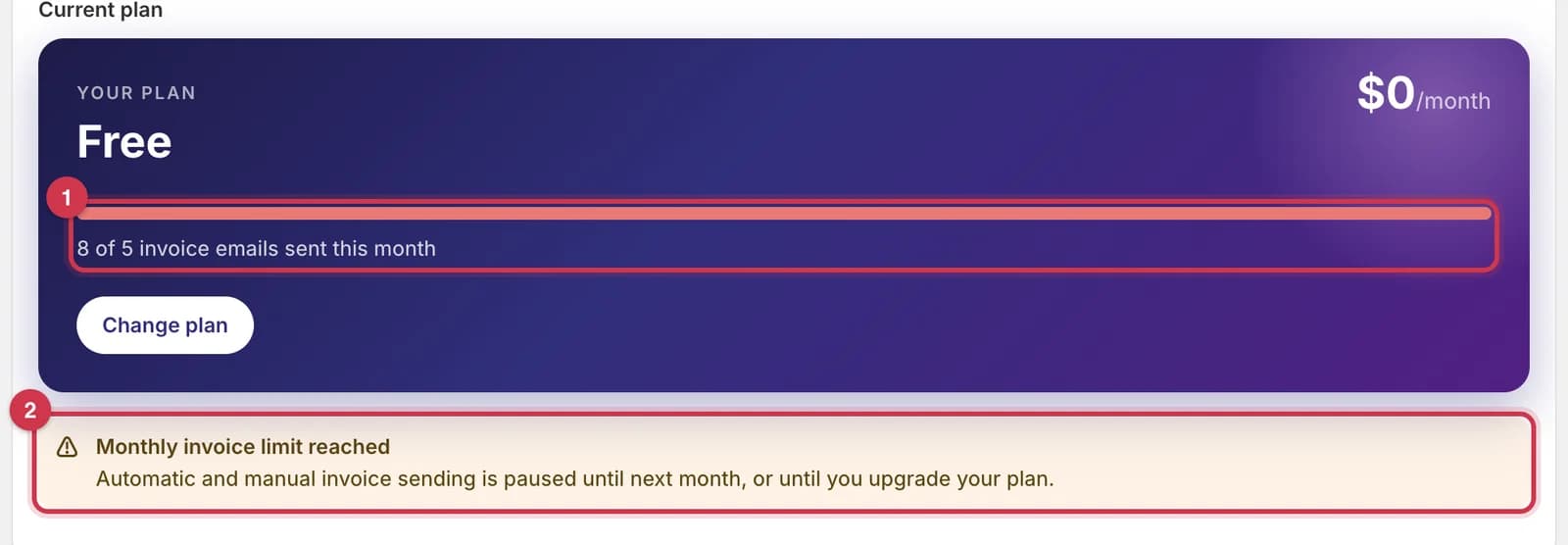
- The meter is red and full. The number can be higher than your limit, for example if you sent emails on a bigger plan earlier this month and then moved to a smaller one.
- Monthly invoice limit reached: Automatic and manual invoice sending is paused until next month, or until you upgrade your plan.
Until the 1st of next month, or until you upgrade:
| What | What happens |
|---|---|
| New orders | An invoice is still created, but it isn't emailed. It shows as Failed on the Invoices page. |
| Resend on the Invoices page | You'll see: Couldn't resend the invoice email. You've reached your plan's monthly invoice limit. Upgrade your plan to send more. |
| Send invoice email on an order | No email is sent, and the window says: Monthly invoice limit reached for the shop's plan. Upgrade to send more invoices this month. |
| Dashboard | The status card says You've reached this month's invoice limit, with a View plans button. See What each status means. |
| Download and Print | Still work, with no limit. |
To start sending again straight away, upgrade to a plan with a higher limit. The new limit applies as soon as you've approved it. Then send the invoices that didn't go out:
- Go to Invoices and filter by Failed.
- For each order, click Retry (or Resend).
If you'd rather wait, sending starts again by itself on the 1st of next month. Orders placed while you were over the limit aren't sent automatically then. Send those yourself as above.
Change your plan
Plans are chosen on Shopify's own plan page, and Shopify adds the charge to your Shopify bill.
- Open Billing.
- Click Change plan on the Current plan card. Or click Upgrade or Downgrade on the plan you want under Available plans. All three open the same Shopify page.
- On Shopify's Select a plan page, click the button on the plan you want.
- For a paid plan, Shopify shows the charge. Check the price and click Approve. Choosing Free needs no approval.
- Shopify brings you back to Invoicepak. Open Billing to see the new plan with the Active badge.
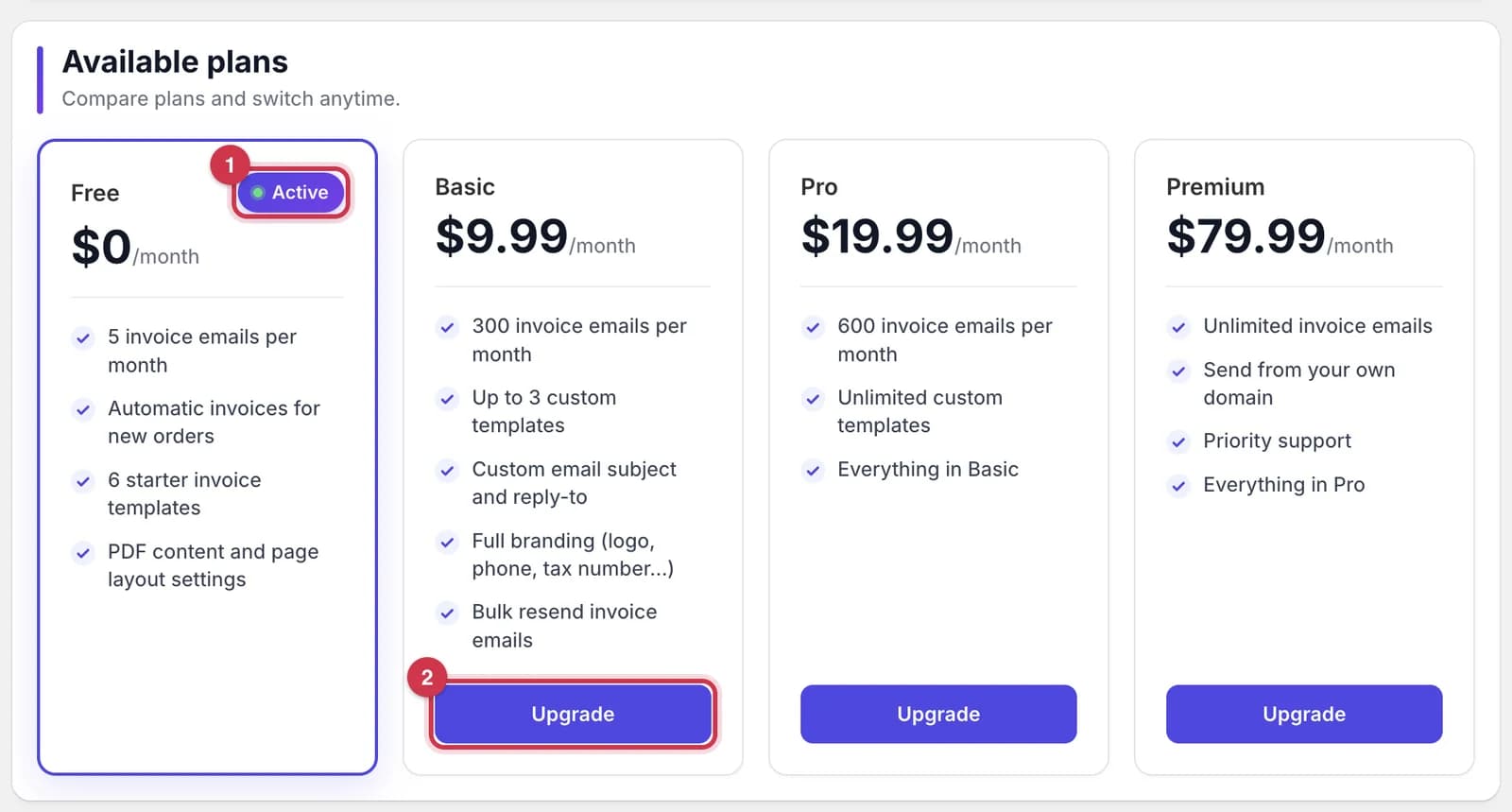
- Active marks your current plan.
- Plans above yours have a purple Upgrade button. Plans below yours have a white Downgrade button.
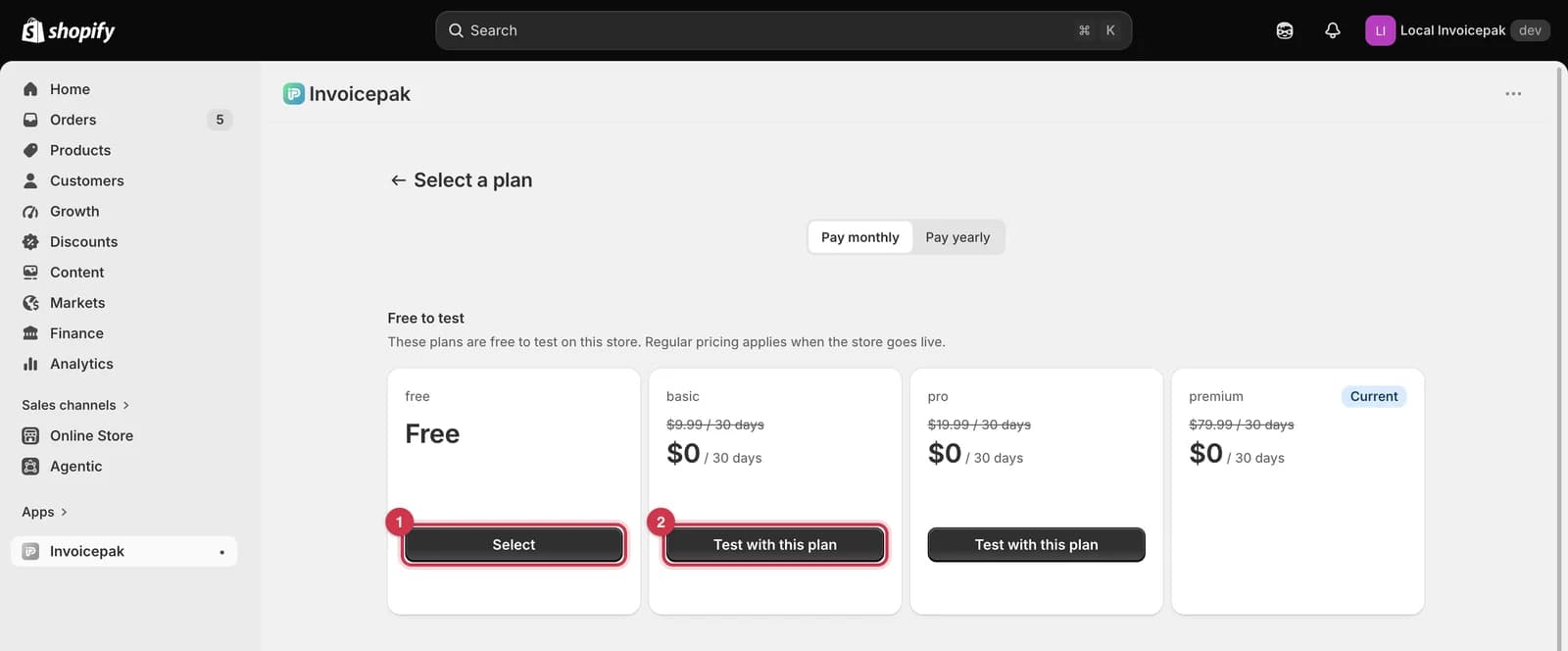
- The Free plan's button is Select.
- Each paid plan has its own button. This screenshot is from a development store, where Shopify shows Test with this plan and $0 prices. On your store you'll see the real prices. Your current plan is labelled Current.
Pay monthly / Pay yearly at the top switches the prices shown, if yearly billing is offered.
Upgrade
- New features unlock straight away, such as the custom email fields, branding fields, or bulk resend.
- Your new email limit applies straight away, including the emails you've already sent this month. For example, 5 sent on Free means 295 left on Basic.
- Shopify works out the charge and shows it before you approve.
Downgrade
- Features that aren't in the new plan lock straight away. Your settings are kept. See What happens to your settings when you downgrade.
- The lower email limit applies straight away. If you've already sent more than it allows this month, sending pauses until the 1st of next month.
What happens to your settings when you downgrade
Nothing is deleted when you downgrade. Settings from your old plan are kept but not used, and they come back when you upgrade again.
| Feature | After downgrading |
|---|---|
| Custom Subject, Message body, Reply-to email (to Free) | Kept but greyed out. Emails use the default subject and message, and replies go to your Company email or Shopify store email. |
| Logo, phone, email, website, tax number (to Free) | Kept, but they no longer appear on invoices or emails. |
| Templates over your new limit | All kept and still usable, including as your default. You can't create or duplicate templates until you're under the limit. |
| Bulk resend (to Free) | Selecting several invoices and choosing Resend shows Upgrade to resend in bulk. You can still resend invoices one at a time from their actions menu. |
| Your own sending domain (from Premium) | Kept, but invoices go back to Invoicepak's address. If you return to Premium and the domain is still verified, it's used again straight away. |
Common questions
Is there a free trial?
You can use the Free plan for as long as you like: 5 invoice emails a month and the 6 starter templates. Upgrade when you need more.
When does my monthly limit reset?
On the 1st of each month. The Dashboard stats start again from zero at the same time.
Does Invoicepak charge me directly?
No. Shopify adds the charge to your Shopify bill.
I upgraded, but my old invoices still show Failed.
Your new limit applies to new orders straight away, but invoices that failed while you were over the limit aren't sent again automatically. Click Retry or Resend on each one. See When you reach your limit.
Why does my meter say "8 of 5"?
You sent those emails on a bigger plan earlier this month and then moved to a smaller one. Sending is paused until the 1st of next month, or until you upgrade.
Do downloads or prints count towards my limit?
No. Only emails count. You can download and print as many PDFs as you like on any plan.
Do test emails count towards my limit?
No. They have their own limit of 100 a month.
Last updated