Invoices from Shopify Orders
Print an Invoicepak invoice from a Shopify order, print invoices for up to 50 orders at once, or email an invoice to the customer straight from the order page.
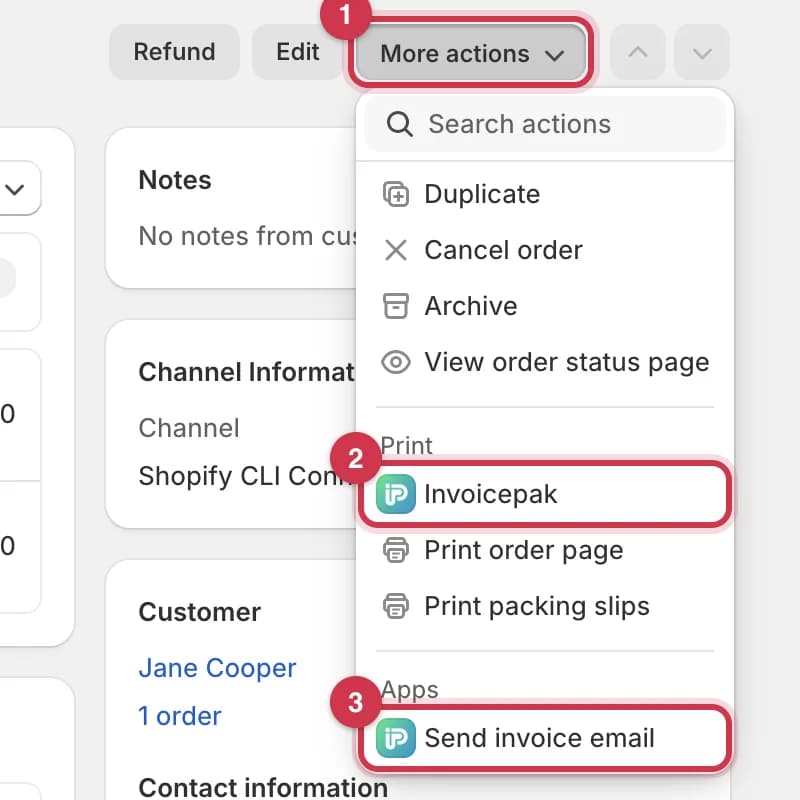
You don't have to open Invoicepak to print or send an invoice. Invoicepak adds three actions to the Shopify Orders pages:
| Action | Where | What it does |
|---|---|---|
| Print → Invoicepak | An order's page | Prints the invoice for that order |
| Print → Invoicepak | The Orders list, with orders selected | Prints invoices for up to 50 orders at once |
| Send invoice email | An order's page | Emails the invoice to the customer now |
Print an invoice from an order
- In the Shopify admin, go to Orders and open an order.
- Click More actions at the top right.
- Under Print, click Invoicepak.
The print window opens:
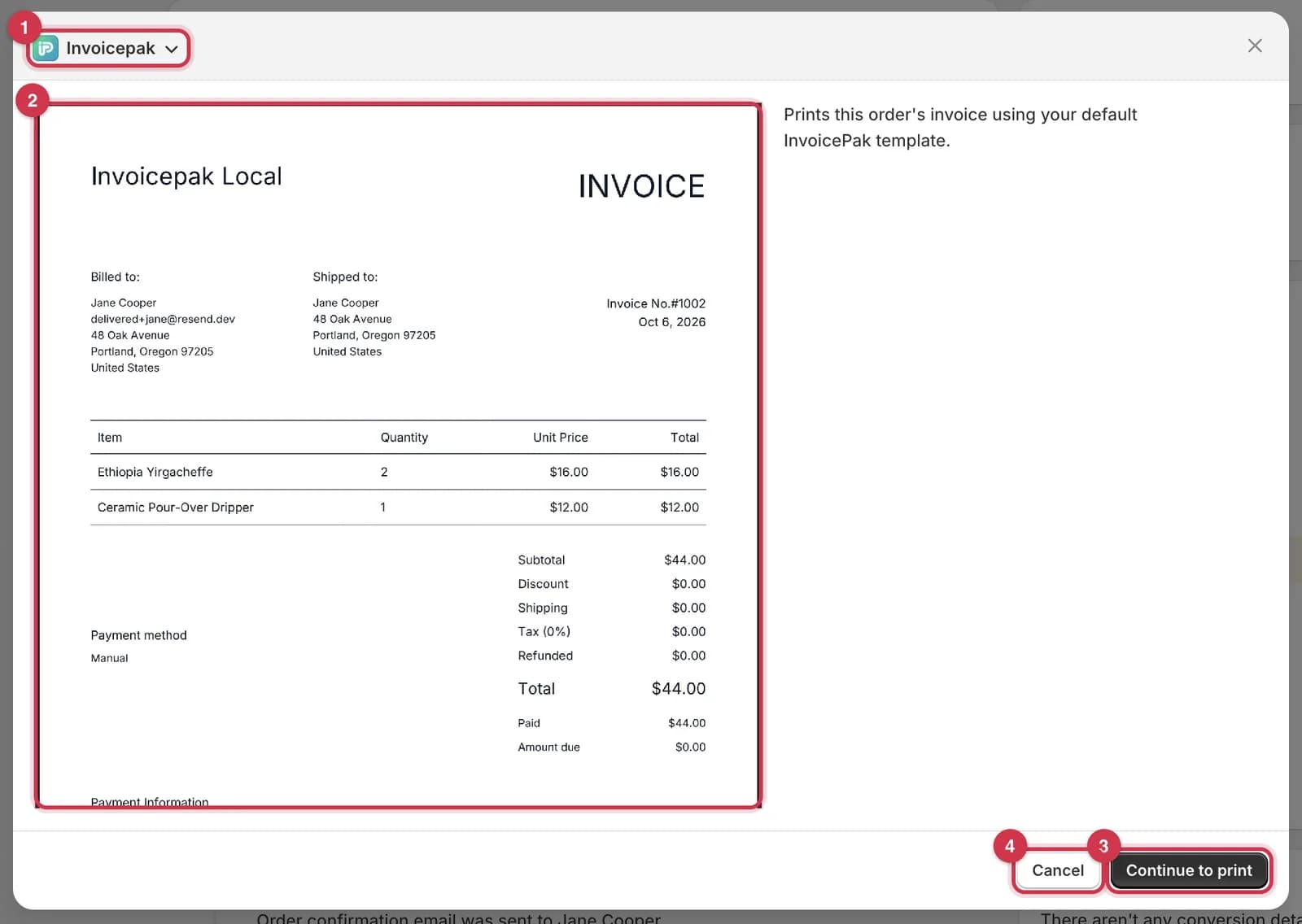
- The print type. Click it to switch to Shopify's own print options, such as Print packing slips.
- A preview of the invoice, made with your default template and your Invoice PDF settings.
- Click Continue to print to open your browser's print window. Choose your printer and click Print.
- Click Cancel to close without printing.
Printing doesn't send any email and doesn't use your monthly invoice emails. It's counted under PDF downloads on the Dashboard.
Print invoices for several orders
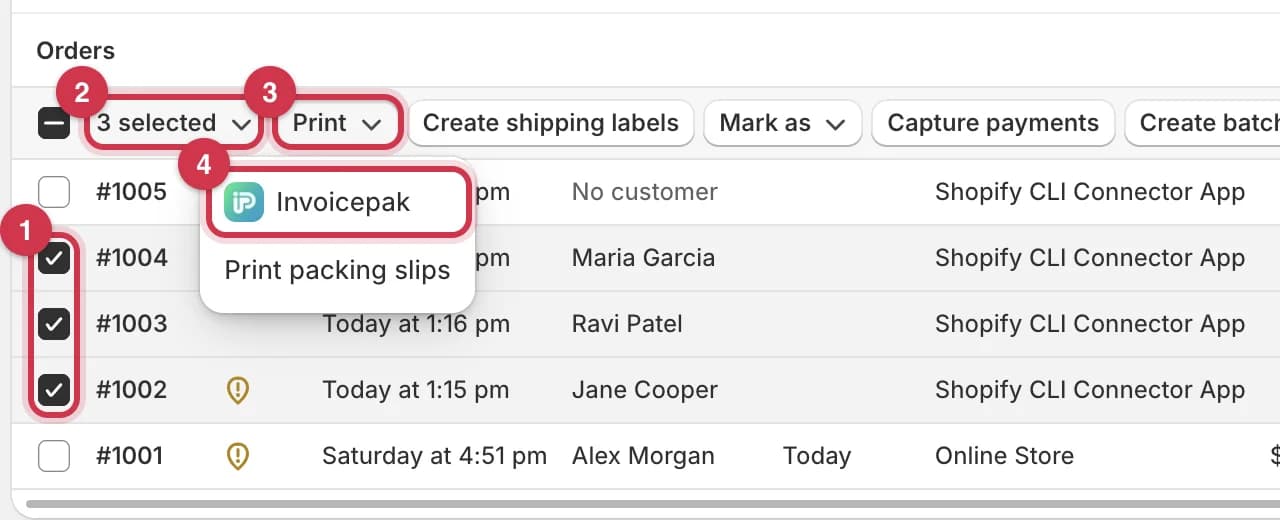
- In the Shopify admin, go to Orders.
- Tick the box next to each order you want to print.
- The bar at the top shows how many orders are selected.
- Click Print.
- Click Invoicepak.
The print window opens:
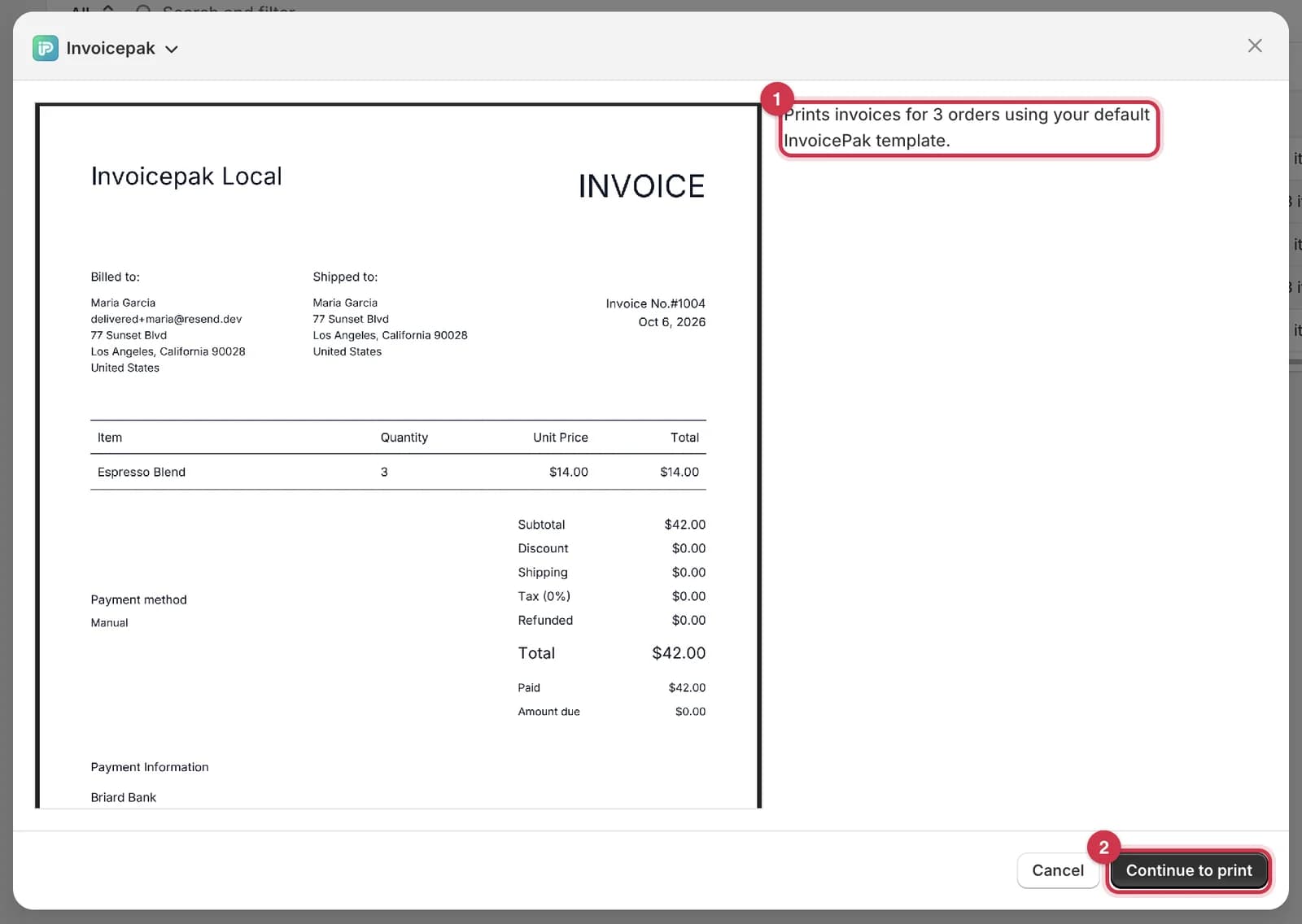
- The description confirms how many orders will print, for example Prints invoices for 3 orders using your default Invoicepak template.
- Click Continue to print. Each order's invoice starts on a new page.
You can print up to 50 orders at a time. If you select more, the print window says Too many orders selected. Select up to 50 orders to print invoices. Select fewer orders and try again.
Send an invoice email from an order
Use this to email an invoice when automatic sending is off, for orders placed before you installed Invoicepak, or to send an invoice again.
- In the Shopify admin, go to Orders and open the order.
- Click More actions.
- Under Apps, click Send invoice email. It's marker 3 in the More actions menu.
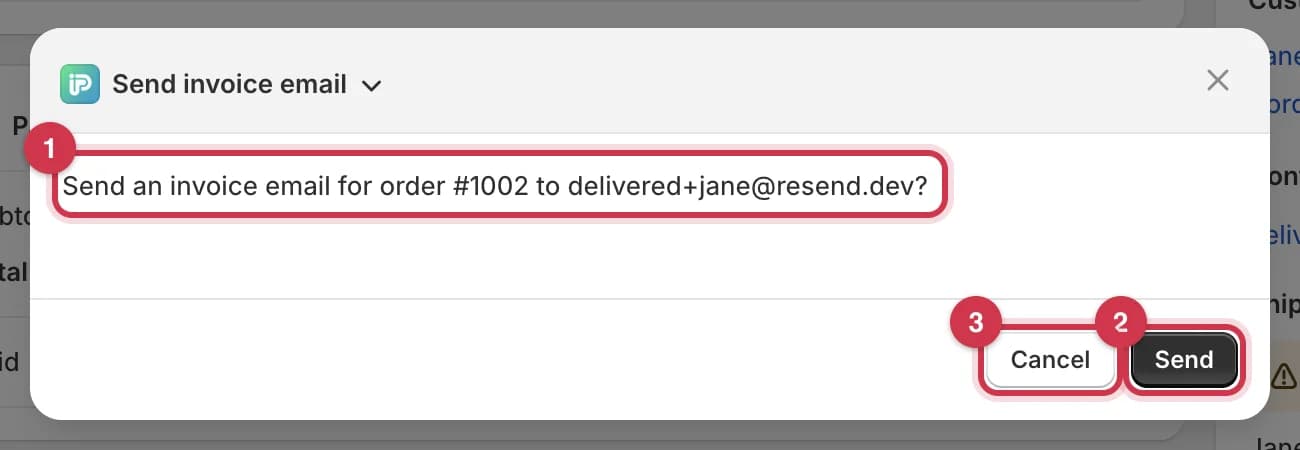
- Check the order number and email address.
- Click Send.
- Or click Cancel to close without sending.
While it sends, you'll see Sending invoice email…. When it's done:
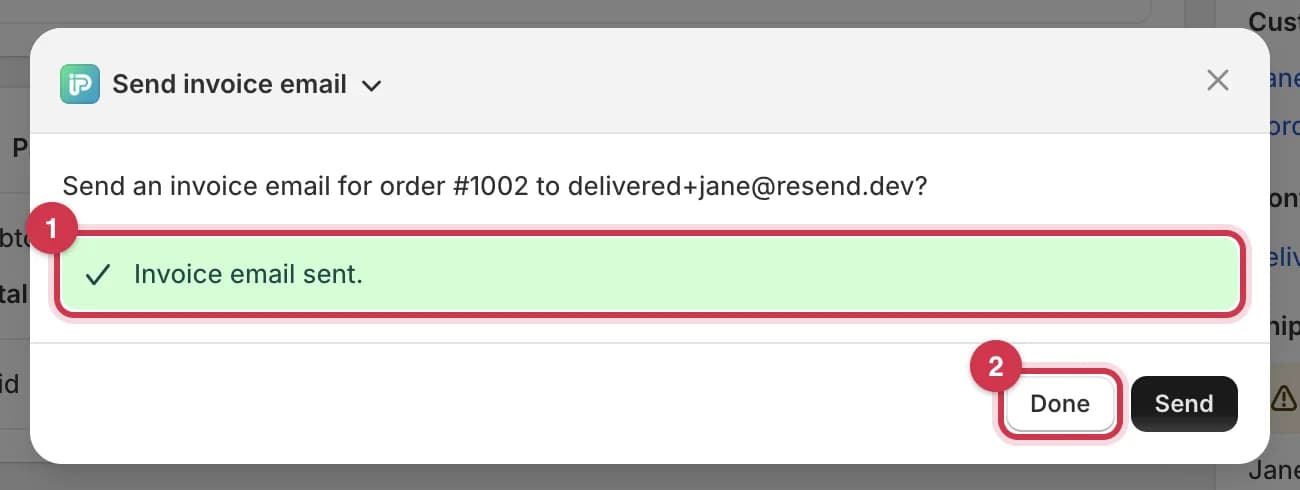
- Invoice email sent.
- Click Done to close the window.
The invoice then appears on the Invoices page with the status Sent.
Good to know
- This sends even when Send invoices automatically is off.
- It uses your default template and your Customer email settings.
- Each send counts towards your plan's monthly invoice emails.
- If the order already has an invoice, this sends that invoice again, the same as Resend on the Invoices page. It goes to the email address saved with that invoice, which may be different from the address shown in this window if the order's email has changed since. See this question.
If something goes wrong
Printing
If the invoice can't be made, the print window shows a short message instead of the invoice:
| Message | What to do |
|---|---|
| No default invoice template is set. Choose one in Templates first. | Publish a template and set it as default on the Templates page |
| You can print up to 50 invoices at a time. | Select fewer orders |
| Couldn't generate the invoice. Try again. | Close the window and try again |
Sending
If the email can't be sent, a red message appears in the Send invoice email window:
| Message | What to do |
|---|---|
| This order has no customer email on file and cannot be invoiced. | Add an email address to the order in Shopify. Then retry from the Invoices page |
| This invoice has no customer email on file and cannot be resent. | The order had no email when its invoice was first made. Add an email to the order, then click Retry on the invoice in Invoices |
| Monthly invoice limit reached for the shop's plan. Upgrade to send more invoices this month. | Upgrade under Billing, or wait until the 1st of next month |
| A message saying the customer's address bounced or marked an earlier invoice as spam | Invoicepak won't email that address again. Print or download the invoice and send it another way |
| No default invoice template is configured for this shop. | Publish a template and set it as default |
Which plan do I need?
| Action | Free | Basic | Pro | Premium |
|---|---|---|---|---|
| Print → Invoicepak (one order) | ✓ | ✓ | ✓ | ✓ |
| Print → Invoicepak (up to 50 orders) | ✓ | ✓ | ✓ | ✓ |
| Send invoice email | ✓ | ✓ | ✓ | ✓ |
| Invoice emails per month | 5 | 300 | 600 | Unlimited |
Printing never uses invoice emails. Send invoice email uses one each time.
Common questions
I don't see Invoicepak under More actions. Why?
Make sure Invoicepak is installed and you've chosen a plan. If it still doesn't show, reload the order page.
Does Print → Invoicepak email the customer?
No. It only prints. Use Send invoice email to email the invoice.
Which template is used?
Always your default template. To use a different design, set it as default on the Templates page first.
I changed the customer's email on the order, but the invoice went to the old address. Why?
The order already had an invoice, and resending uses the address saved with it. If the invoice had failed, click Retry on the Invoices page, which reads the order's current email. For an invoice that was already sent, print or download it and send it yourself.
Can I print invoices for orders placed before I installed Invoicepak?
Yes. Printing works for any order.
Can I send invoices for several orders at once from the Orders list?
Not from the Orders list. On the Invoices page you can resend several existing invoices at once (Basic plan or higher). See Resend emails in bulk.
Last updated