Dashboard tour
Read your invoicing status, monthly email usage, invoice stats and recent invoices on the Invoicepak Dashboard, and fix anything that needs attention.
The Dashboard is the first page you see when you open Invoicepak. It shows whether invoices are going out, how many emails you have left this month, and how your invoices are doing.
The Dashboard at a glance
To open the Dashboard, click Invoicepak in the Shopify admin sidebar.
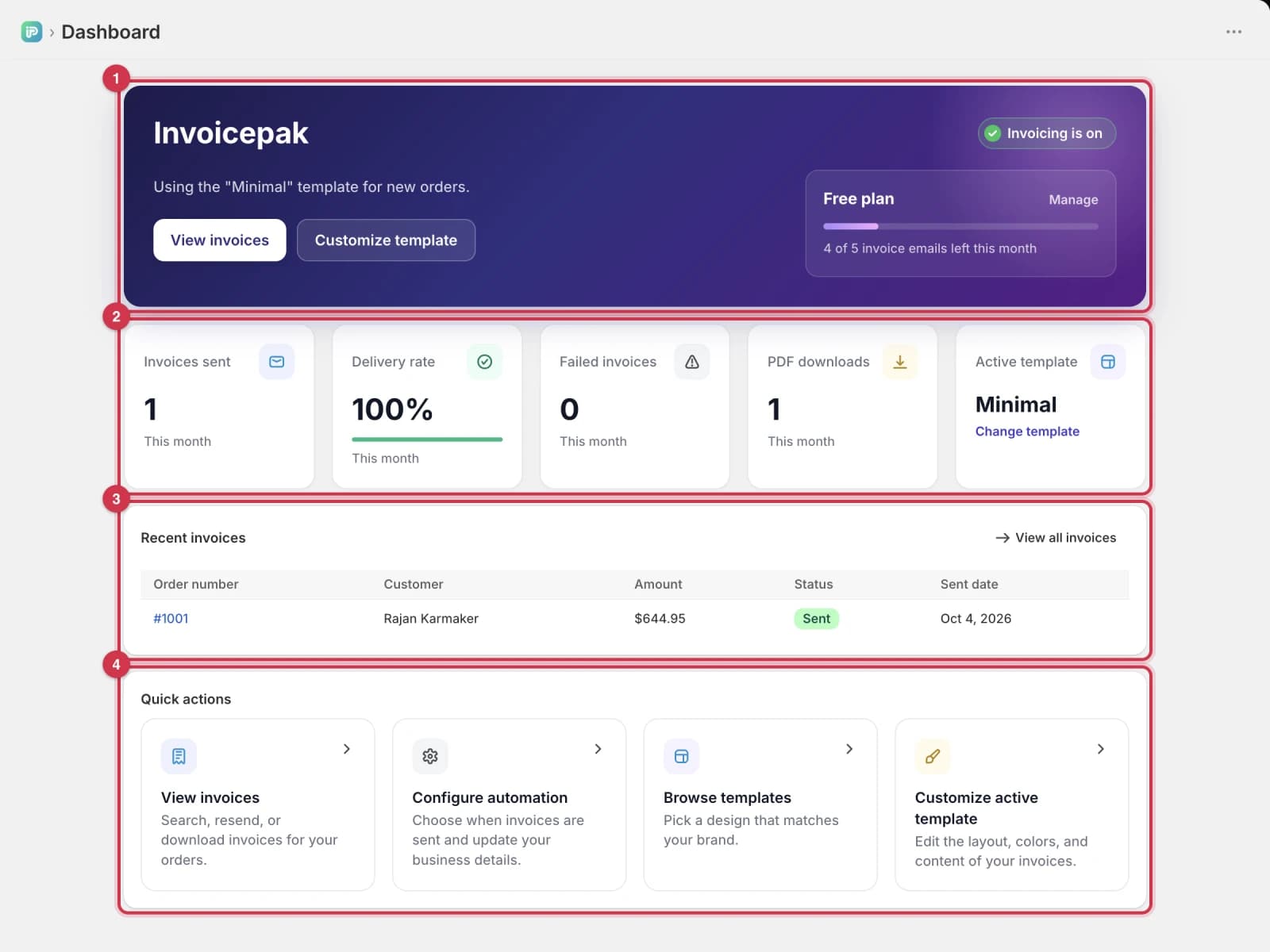
- Status and plan. Whether invoices are being sent, and how many invoice emails you have left this month.
- Monthly stats. Five cards with this month's numbers.
- Recent invoices. Your five newest invoices.
- Quick actions. Shortcuts to the pages you'll use most.
While you're still setting up, the Setup guide card appears between the stats and Recent invoices. It disappears when every step is done or when you dismiss it. See Use the Setup guide.
Invoicing status and your plan
The top card shows your invoicing status on the left and your plan on the right.
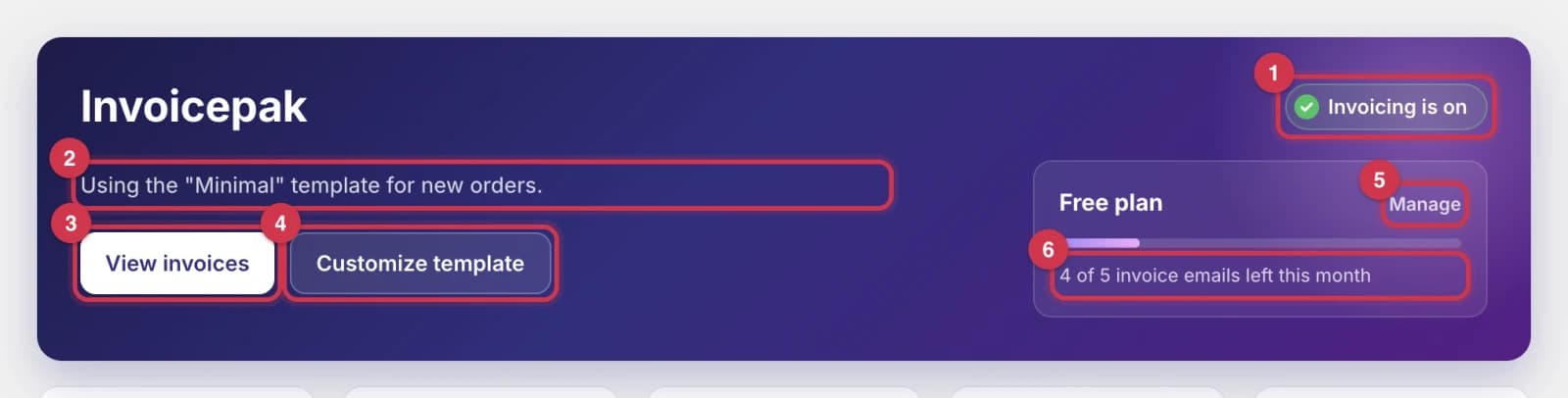
- The status at the top right tells you whether new orders are getting invoices. A green check means everything is working. An orange or red ! means something needs your attention. See What each status means.
- The line below Invoicepak explains the status. When invoicing is on, it names the template used for new orders, for example Using the "Minimal" template for new orders.
- The first button takes you where you're most likely to go next. When invoicing is on, it's View invoices and opens the Invoices page. When something needs fixing, it changes to the fix, for example Turn on.
- Click Customize template to open your default template in the editor. If you don't have a default template, the button says Browse templates and opens the Templates page.
- Click Manage to open Billing, where you can compare plans and upgrade.
- The bar and the line under your plan name show how many invoice emails you have left this month, for example 4 of 5 invoice emails left this month. The bar fills up as you send. On the Premium plan there's no bar, and it says Unlimited invoice emails.
What each status means
Only one status shows at a time. If more than one problem applies, you'll see the first one in this table. Once you fix it, the next one (if any) appears.
| Status | What it means | Button |
|---|---|---|
| Invoicing is on | Everything is set up. Every new order is emailed an invoice. | View invoices opens the Invoices page. |
| Invoices aren't being sent yet | Your default template isn't published, so new orders don't get an invoice. | Choose template opens Templates, where you can publish a template and set it as your default. |
| You've reached this month's invoice limit | You've used all the invoice emails in your plan. New orders won't get an invoice until next month. | View plans opens Billing, where you can upgrade to keep sending. |
| Automatic sending is off | Invoices are only sent when you send them yourself from an order. | Turn on opens Settings, where you can turn on automatic sending. |
Here's how the card looks when automatic sending is off:
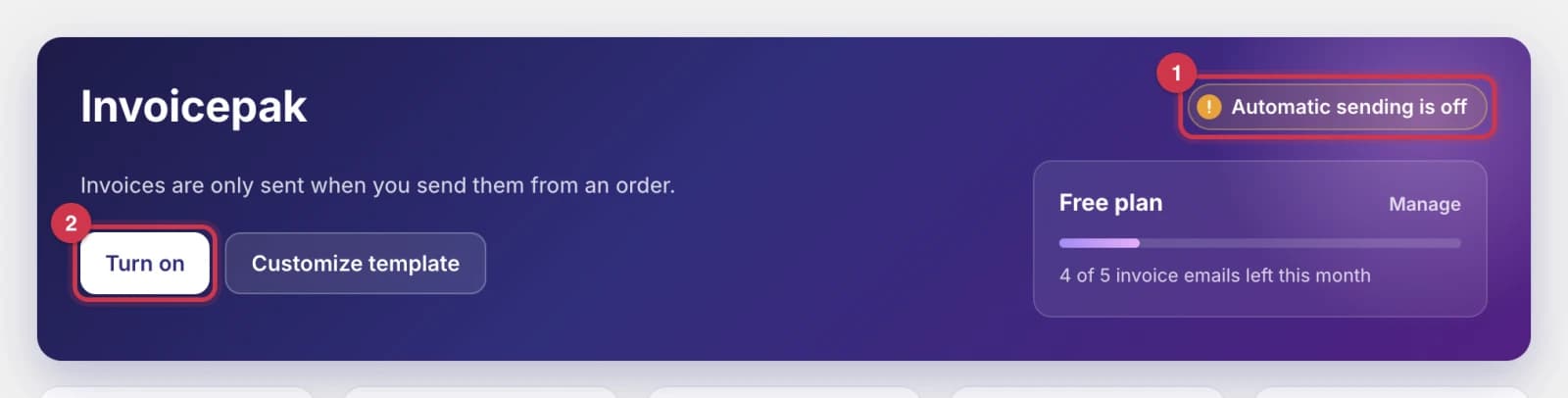
- The status says Automatic sending is off.
- Click Turn on. On the Settings page, under Invoice automation, turn on Send invoices automatically, then click Save at the top of the page.
Back on the Dashboard, the status changes to Invoicing is on.
Monthly stats
The row of cards under the status card shows this month's numbers.
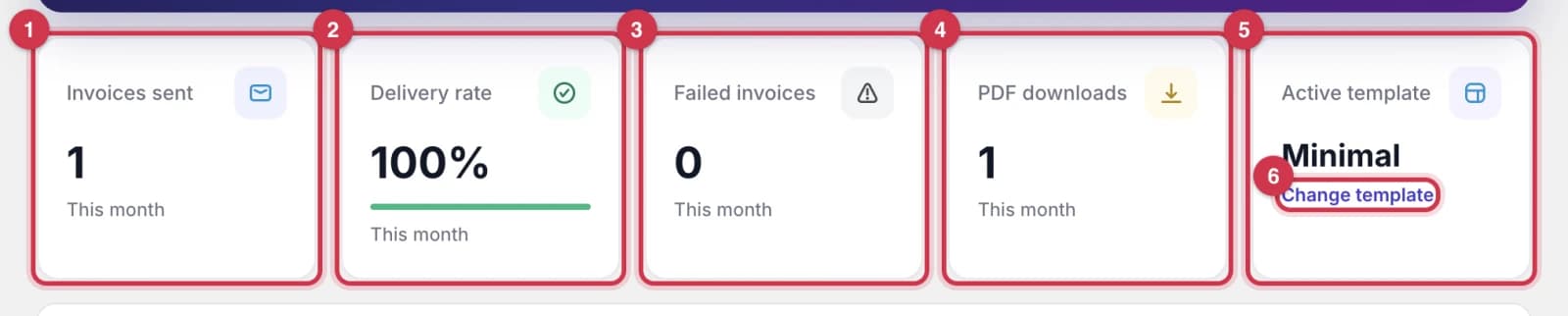
| # | Card | What it shows |
|---|---|---|
| 1 | Invoices sent | How many invoice emails were sent this month, resends included. |
| 2 | Delivery rate | The share of this month's invoice emails that were sent successfully. The green bar shows the same number. It shows — until you send your first email of the month. |
| 3 | Failed invoices | How many of this month's invoices couldn't be sent. When this is above 0, the card turns red and shows a Review failed invoices link. |
| 4 | PDF downloads | How many invoice PDFs you downloaded or printed this month, from the Invoices page or from Shopify orders. |
| 5 | Active template | The name of your default template, used for every new invoice. Shows None selected if you don't have one. |
- Click Change template on the Active template card to open Templates and choose another default. If no template is set, the link says Choose a template.
If you have failed invoices, click Review failed invoices on the Failed invoices card. This opens the Invoices page. Click the Failed tab to see only those invoices, then click Retry on each one.
Recent invoices
This table lists your five newest invoices. Archived invoices aren't included.

- Click an order number to open that order in Shopify. It opens in a new tab.
- Click View all invoices to open the Invoices page, where you can search, preview, download, resend and archive invoices.
Each row shows:
| Column | What it shows |
|---|---|
| Order number | The Shopify order the invoice belongs to, for example #1001 |
| Customer | The customer's name, or their email if the order has no name |
| Amount | The order total, in the order's currency |
| Status | Pending (waiting to be sent), Processing (being created and sent), Sent or Failed |
| Sent date | When the invoice email was sent. Shows — if it hasn't been sent yet |
Before your first order, the table is replaced by No invoices yet. Once an order comes in, its invoice shows up here.
Quick actions
The cards at the bottom take you straight to the pages you'll use most.
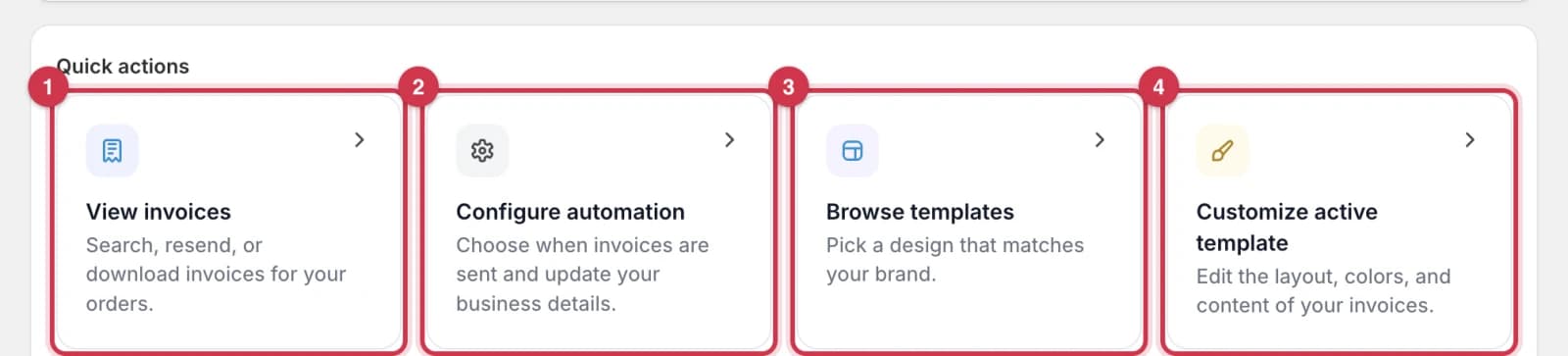
- View invoices opens the Invoices page, where you can search, resend or download invoices.
- Configure automation opens Settings, where you choose when invoices are sent and update your business details.
- Browse templates opens Templates, where you can pick a design that matches your brand.
- Customize active template opens your default template in the editor so you can change its layout, colors and content. This card only appears when you have a default template.
Common questions
Why does the Dashboard show 0 for everything?
The stats count the current calendar month only. On the 1st of each month they start again from zero. Your older invoices are still on the Invoices page.
Why don't "Invoices sent" and my number of orders match?
Invoices sent counts emails, not orders. Each resend counts as one more email. Orders placed while automatic sending was off, or after you reached your monthly limit, don't get an invoice unless you send one from the order.
I upgraded my plan. Why does the Dashboard still show my old limit?
Reload the page. The Dashboard checks your plan with Shopify every time it opens, so the new limit shows up straight away.
What happens to orders placed after I reach my invoice limit?
They don't get an invoice email, and the status says You've reached this month's invoice limit. Upgrade from Billing to keep sending, or wait until the 1st of next month. You can still download and print PDFs.
The status says "Invoices aren't being sent yet", but I have templates. Why?
Your default template is a draft. Go to Templates, open the template's … menu and choose Publish, or set a published template as your default.
Where's the Setup guide?
It disappears once all four steps are done, or if you dismissed it. Every step is still available from the app's pages. See the Quick start common questions.
Last updated