Invoices page
Find, filter and sort your invoices in Invoicepak, then preview, resend, download, print, retry or archive them, one at a time or in bulk.
The Invoices page lists every invoice Invoicepak has created for your orders. From here you can find an invoice, see whether it was sent, preview it, download or print it, email it again, and archive it.
The Invoices page at a glance
In the Shopify admin sidebar, under Invoicepak, click Invoices.
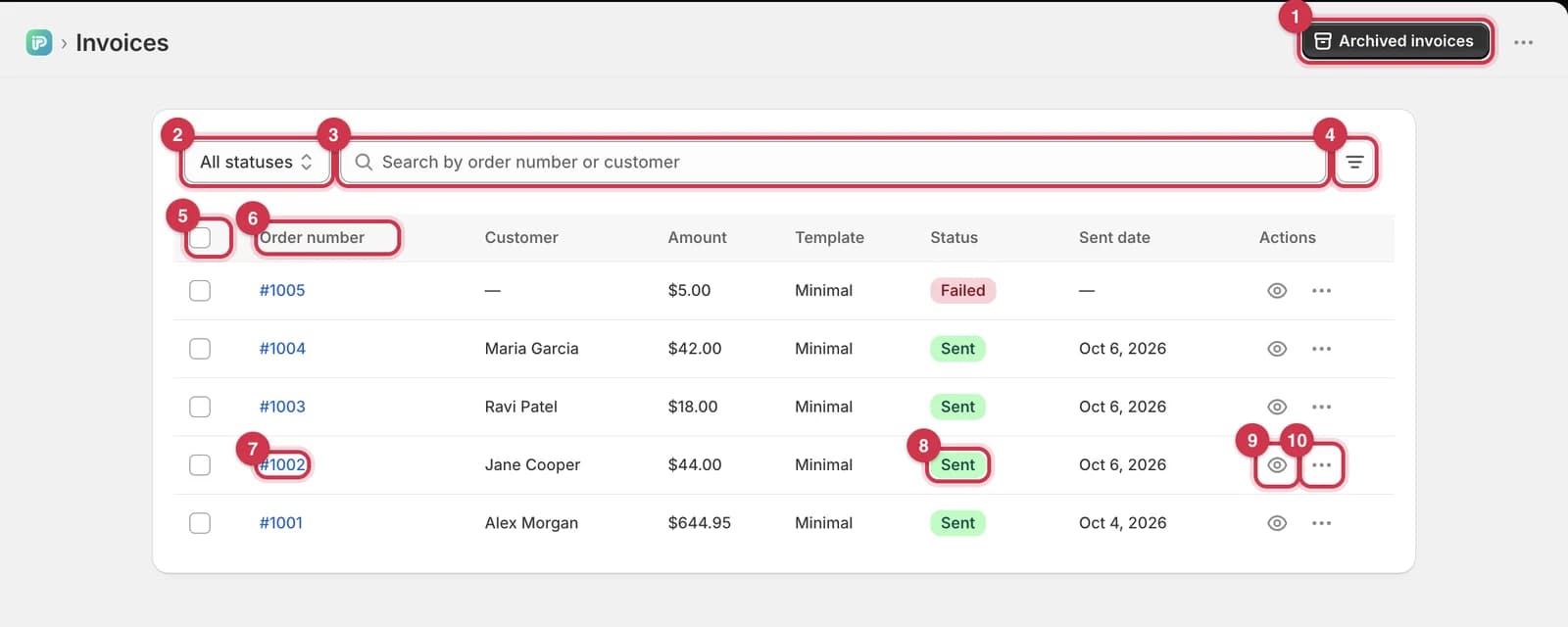
- Archived invoices opens the invoices you've archived. See Archived invoices.
- The status filter. See Filter by status.
- Search by order number or customer. See Search.
- More filters: dates and columns. See More filters.
- Select all ticks every invoice on the page. See Select invoices.
- Click a column heading to sort. See Sort.
- The order number. Click it to open the order in Shopify, in a new tab.
- The invoice's status. See What each status means.
- The eye icon previews the invoice. See Preview.
- … opens the invoice's actions. See Actions for one invoice.
Each row shows:
| Column | What it shows |
|---|---|
| Order number | The Shopify order the invoice is for |
| Customer | The customer's name, or their email if there's no name. "—" if the order has neither |
| Amount | The order total |
| Template | The template used when the invoice was created |
| Status | Pending, Processing, Sent or Failed |
| Sent date | When the invoice email was sent. "—" if it hasn't been sent |
| Actions | Preview and the … menu |
Newest invoices are shown first.
What each status means
| Status | What it means | What to do |
|---|---|---|
| Pending | Invoicepak hit a temporary problem and will try again on its own | Nothing. Wait a few minutes |
| Processing | The invoice is being created and emailed | Nothing. It changes to Sent within moments |
| Sent | The invoice email was sent to the customer | Nothing |
| Failed | The invoice couldn't be sent | See Why an invoice failed |
Find an invoice
Filter by status
- Click the status filter. It says All statuses to start with.
- Choose Pending, Processing, Sent or Failed.

- The chosen status.
- Reset filters appears whenever a filter or search is active. Click it to clear the status, search and dates in one go.
If nothing matches, the page says No invoices match your filters.
Search
- Click the search box.
- Type part of an order number (for example
1002), a customer's name, or a customer's email.
The list updates as you type. Capital letters don't matter.
More filters: dates and columns
Click the More filters button next to the search box.
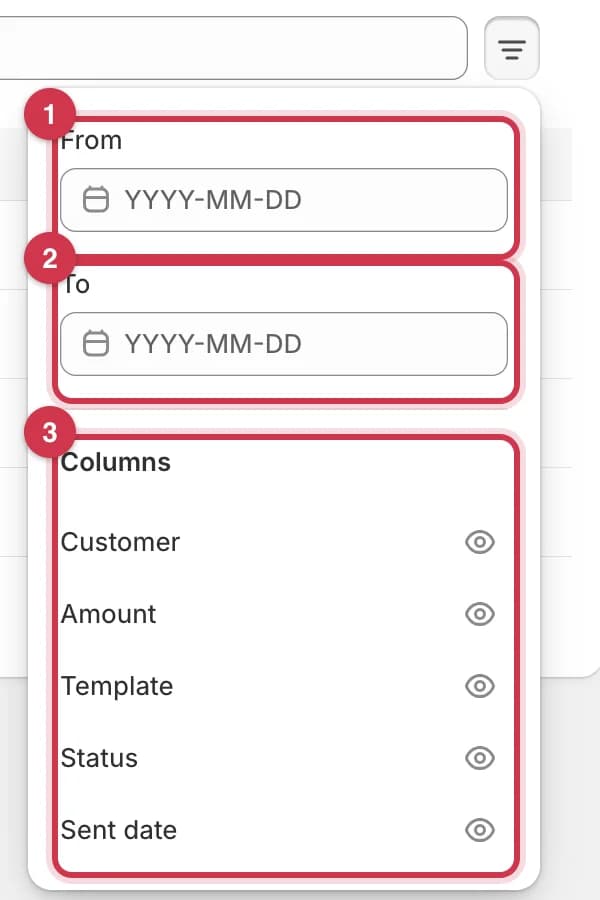
- From: show invoices created on or after this date.
- To: show invoices created on or before this date.
- Columns: click the eye icon next to a column to hide it. Click it again to show it.
The dates use the day the invoice was created, which is when the order came in. Leave a date empty to have no limit on that side.
Sort
Click Order number, Customer, Status or Sent date at the top of the table to sort by that column. Click the same heading again to switch between ascending and descending. An arrow next to the heading shows the current direction.
Pages
The page shows 20 invoices at a time. When there are more, use the arrows below the table to move between pages. Page 1/3 shows where you are.
Actions for one invoice
Click … on an invoice's row to see its actions. A failed invoice also has Retry.
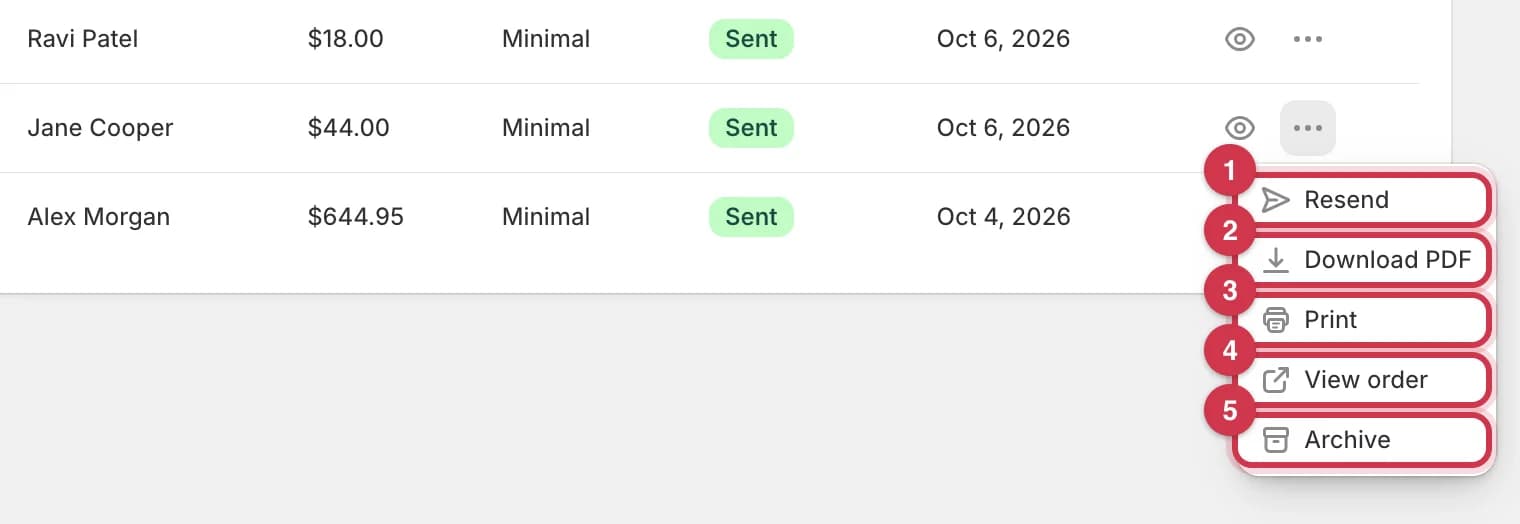
- Resend
- Download PDF
- View order
- Archive
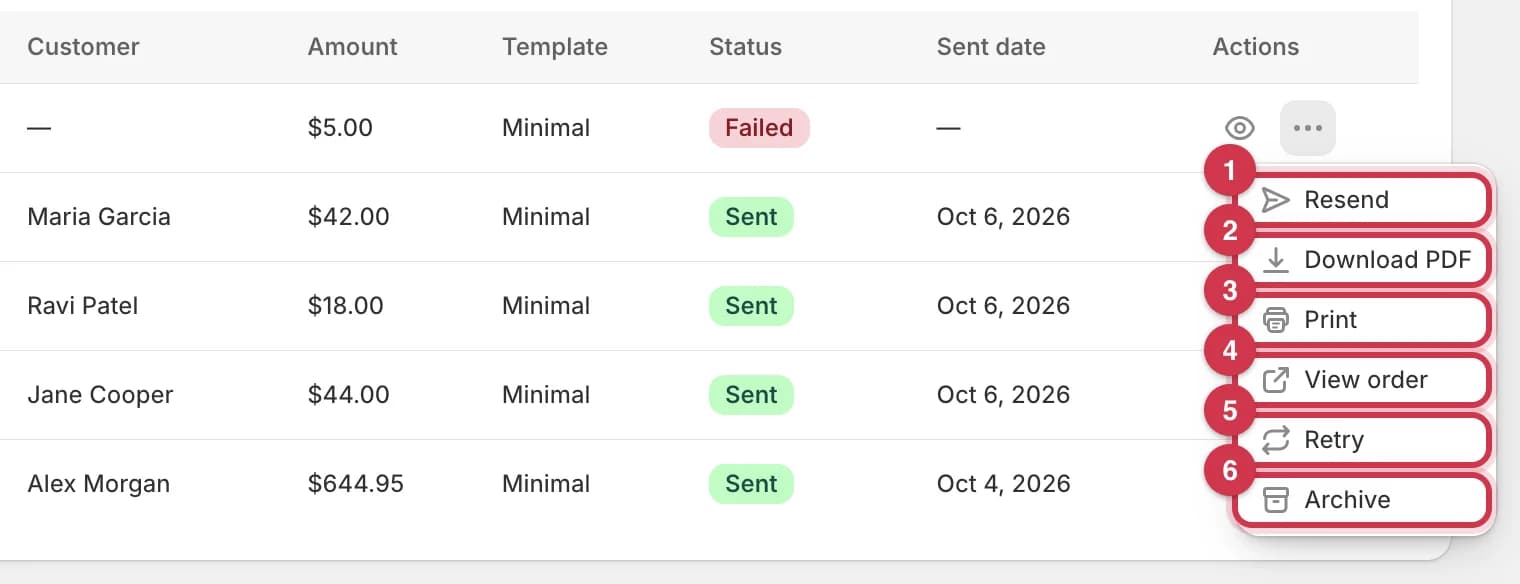
- Resend
- Download PDF
- View order
- Retry
- Archive
Resend only appears for sent and failed invoices.
Preview
See the invoice PDF without downloading it.
- Click the eye icon on the invoice's row.
- Use the toolbar at the top of the PDF to zoom, download or print.
- Click Close or the × when you're done.
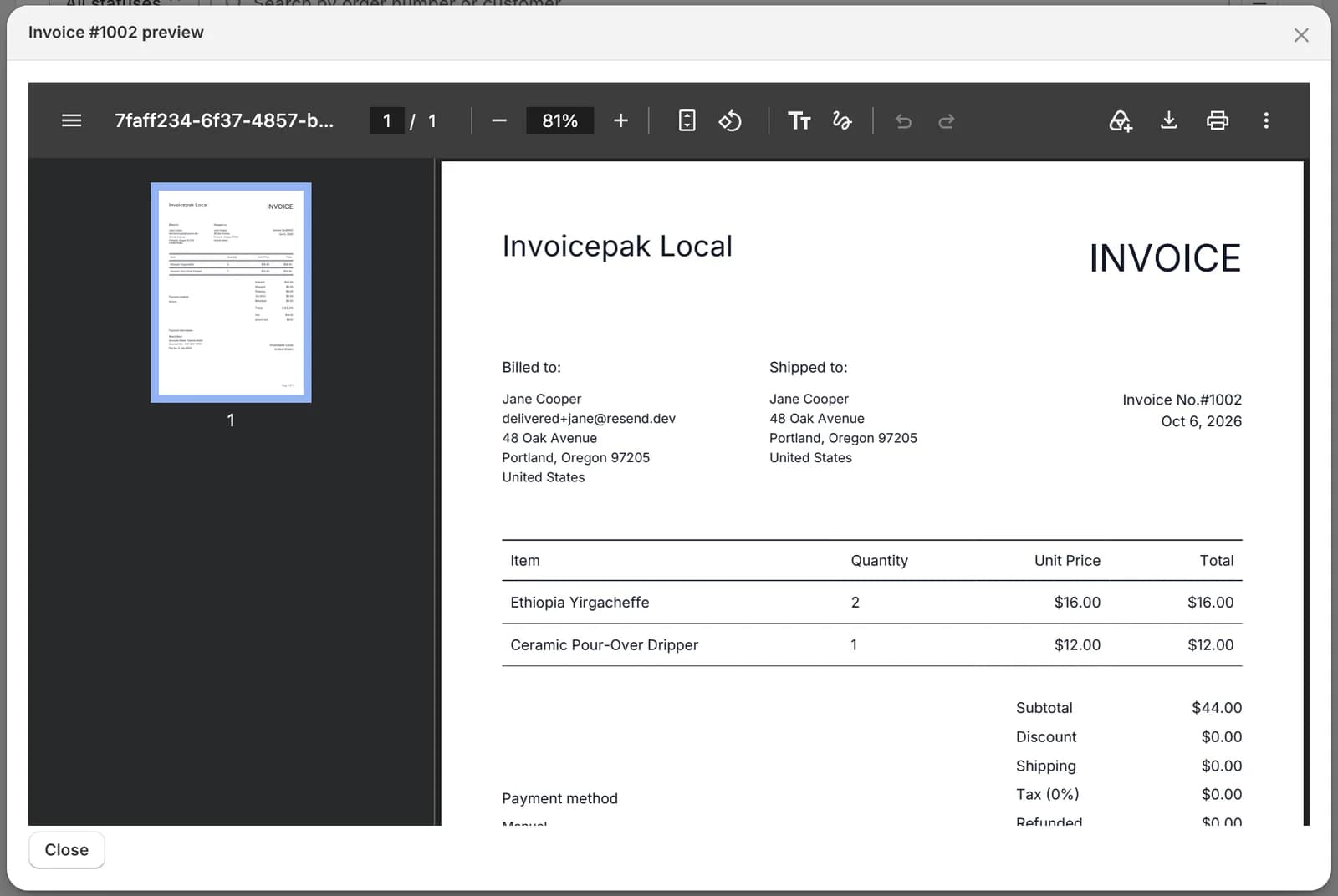
The preview is created fresh from the order, using your current default template and your current settings. If you've changed your template since the invoice was sent, the preview shows the new design.
Resend
Email the invoice to the customer again, for example if they can't find it.
- Click … on the invoice's row.
- Click Resend.
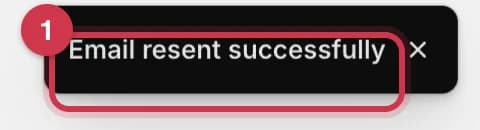
You'll see Email resent successfully. The email goes to the address saved with the invoice when it was first created, using your current template and settings. To send to a different address, see Can I send an invoice to a different email address?
Download PDF
- Click … on the invoice's row.
- Click Download PDF.
The PDF is saved to your computer, named after the order number, for example #1002.pdf. Downloading doesn't use any of your monthly invoice emails.
- Click … on the invoice's row.
- Click Print.
Your browser's print window opens with the invoice. Choose your printer and click Print. Printing doesn't use any of your monthly invoice emails.
View order
- Click … on the invoice's row.
- Click View order.
The order opens in the Shopify admin in a new tab. Clicking the order number in the table does the same.
Retry
Run the invoice again from the start, for a failed invoice only. Use it after you've fixed the problem, for example after adding an email address to the order or changing plan.
- Click … on the failed invoice's row.
- Click Retry.
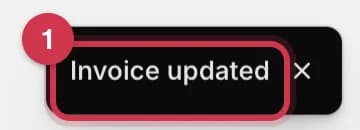
You'll see Invoice updated, and Invoicepak tries again in the background. Refresh the page after a few moments to see the new status. If the problem hasn't been fixed, the invoice goes back to Failed.
Archive
Hide an invoice from the list without deleting it.
- Click … on the invoice's row.
- Click Archive.
You'll see Invoice archived, and the invoice moves to Archived invoices. You can restore it at any time. See Restore an invoice.
Actions for several invoices
Select invoices
Tick the box at the start of each invoice's row. To select every invoice on the page, tick the box at the top of the table.
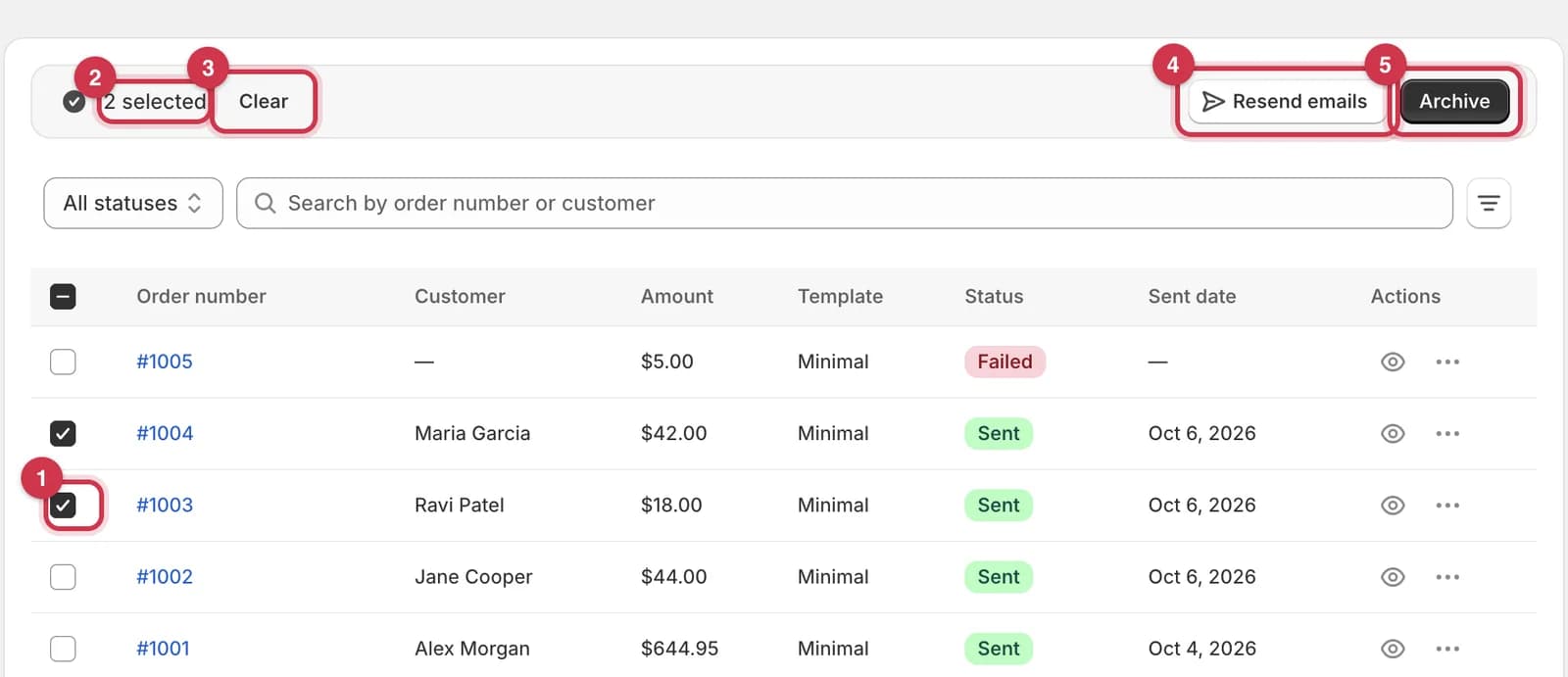
- A ticked invoice.
- How many invoices are selected.
- Clear unticks them all.
- Resend emails emails them all again. See Resend emails in bulk.
- Archive archives them all. See Archive in bulk.
Selection only covers the page you're on.
Resend emails in bulk
Email several invoices again in one go. Basic plan or higher.
- Select the invoices.
- Click Resend emails.
- Click Resend emails to confirm, or Cancel to go back.
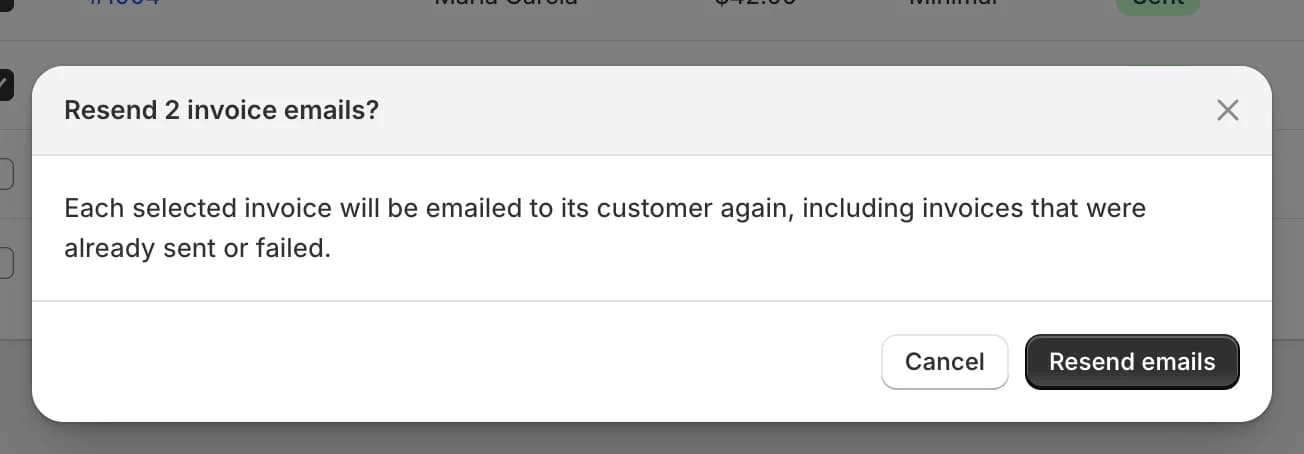
Each selected invoice is emailed to its customer again, including invoices that were sent or failed before. While it runs, a progress bar at the top shows Resending invoice emails and how many are done. You can leave the page; it carries on.
When it's finished, a banner shows the result:

| Banner | Meaning |
|---|---|
| 2 invoice emails resent (green) | Every email was sent |
| 1 of 2 invoice emails resent (orange) | Some couldn't be sent. They're marked Failed in the table |
| Invoice emails couldn't be resent (red) | None could be sent |
Click × to close the banner. Every resent email counts towards your monthly invoice emails.
Archive in bulk
- Select the invoices.
- Click Archive.
- Click Archive to confirm, or Cancel to go back.
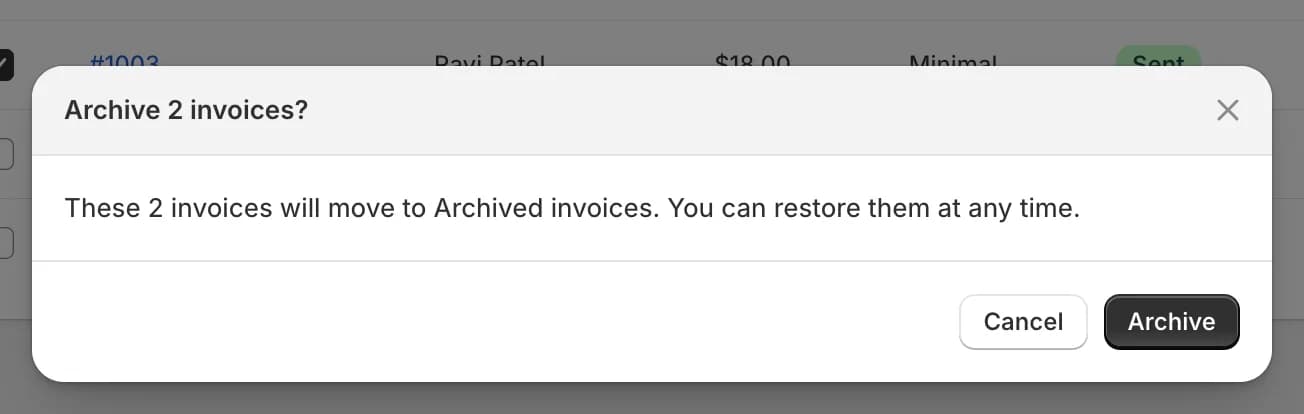
You'll see a message such as 2 invoices archived. They move to Archived invoices, where you can restore them at any time.
Why an invoice failed
The table doesn't show the reason for a failure yet. These are the most common reasons, and how to fix each one:
| Reason | How to fix it |
|---|---|
| The order has no customer email address | Add an email address to the order in Shopify, then click Retry. Retry needs Send invoices automatically to be on |
| You've used all of this month's invoice emails | Upgrade your plan under Billing, then click Retry. Or wait until the 1st of next month |
| The customer's email address bounced before, or they marked an earlier invoice as spam | Invoicepak won't email that address again. Contact the customer another way, for example by sending them a downloaded PDF |
| You have no default template | Publish a template and set it as default on the Templates page, then click Retry |
| A temporary problem connecting to Shopify or the email service | Click Retry |
See Fix a failed invoice for a step-by-step checklist.
Which plan do I need?
| Action | Free | Basic | Pro | Premium |
|---|---|---|---|---|
| Preview, download, print, view order | ✓ | ✓ | ✓ | ✓ |
| Resend one invoice | ✓ | ✓ | ✓ | ✓ |
| Retry | ✓ | ✓ | ✓ | ✓ |
| Archive (one or many) | ✓ | ✓ | ✓ | ✓ |
| Resend emails in bulk | – | ✓ | ✓ | ✓ |
| Invoice emails per month | 5 | 300 | 600 | Unlimited |
Resends count towards your invoice emails. Previews, downloads and printing don't.
Common questions
I resent an invoice. Does the customer get the same PDF?
Not necessarily. The PDF is created again with your current default template and settings, so it shows any changes you've made since.
Why does an invoice show "—" for the customer?
The order has no customer name or email, for example a quick sale. Such invoices usually fail, because there's nowhere to send them.
Can I delete an invoice?
Archive it first. You can then delete it permanently from Archived invoices. See Delete an invoice permanently.
Can I send an invoice to a different email address?
Only for a failed invoice: change the customer's email on the order in Shopify, then click Retry, which reads the order again. Once an invoice exists, Resend and More actions → Send invoice email on the order both use the address saved when the invoice was first created, even if the order's email has changed since. To send a sent invoice somewhere else, Download PDF and email it yourself.
Why don't I see an invoice for an older order?
Invoices are only created for orders placed after you installed Invoicepak, while Send invoices automatically was on. For other orders, use More actions → Send invoice email on the order. See Send an invoice email from an order.
Last updated