FAQ & troubleshooting
Fix failed Invoicepak invoices, catch up after the monthly limit, handle bounced emails, and get answers on invoice numbers, languages and uninstalling.
Answers to the questions merchants ask most, and step-by-step fixes when an invoice doesn't go out.
Fix a failed invoice
An invoice is Failed when Invoicepak couldn't email it. The Dashboard's Failed invoices card shows how many failed this month, with a Review failed invoices link.
- Go to Invoices and choose Failed in the status filter.
- Work out the reason with the checklist below. The app doesn't show the reason yet, so go through it in order.
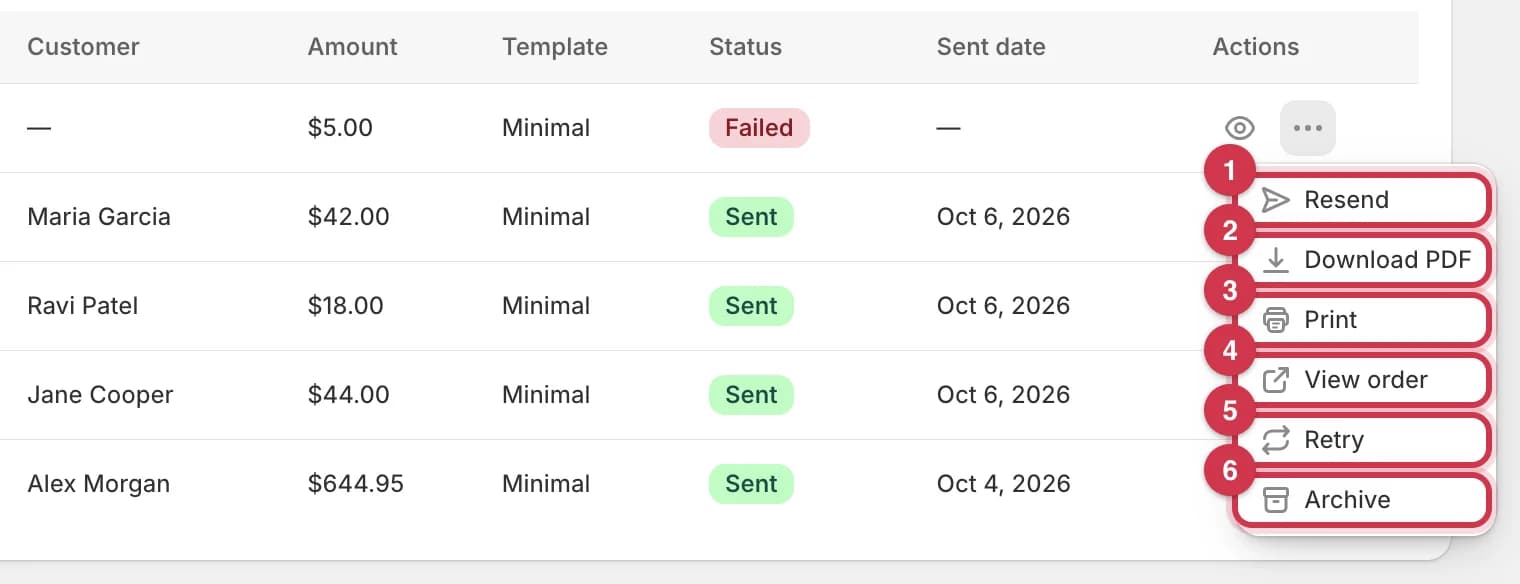
- Fix the cause, then open the invoice's … menu and click Retry.
| Check | How to tell | How to fix it |
|---|---|---|
| 1. No customer email | The Customer column shows "—", or the order in Shopify has no email. | Add an email to the order in Shopify, make sure Send invoices automatically is on, then click Retry. Or download the PDF and give it to the customer yourself. |
| 2. Monthly limit reached | The Dashboard says You've reached this month's invoice limit. | Upgrade under Billing, then click Retry. Or wait until the 1st of next month. See When you've reached your monthly limit. |
| 3. Address bounced or reported spam | Earlier invoices to the same address failed or bounced. | Invoicepak won't email that address again. See Bounced emails and spam complaints. |
| 4. No default template | Settings → Default template is empty, or says No templates yet. | On Templates, publish a template and set it as the default, then click Retry. |
| 5. Temporary problem | None of the above. | Click Retry. If it fails again, wait a few minutes and try once more. |
Retry or Resend?
- Retry reads the order again, including the customer's current email address. Use it for Failed invoices.
- Resend sends to the email address saved with the invoice. Use it for invoices that were Sent but the customer lost or didn't receive.
Both count as one invoice email if they send. See Actions for one invoice.
When you've reached your monthly limit
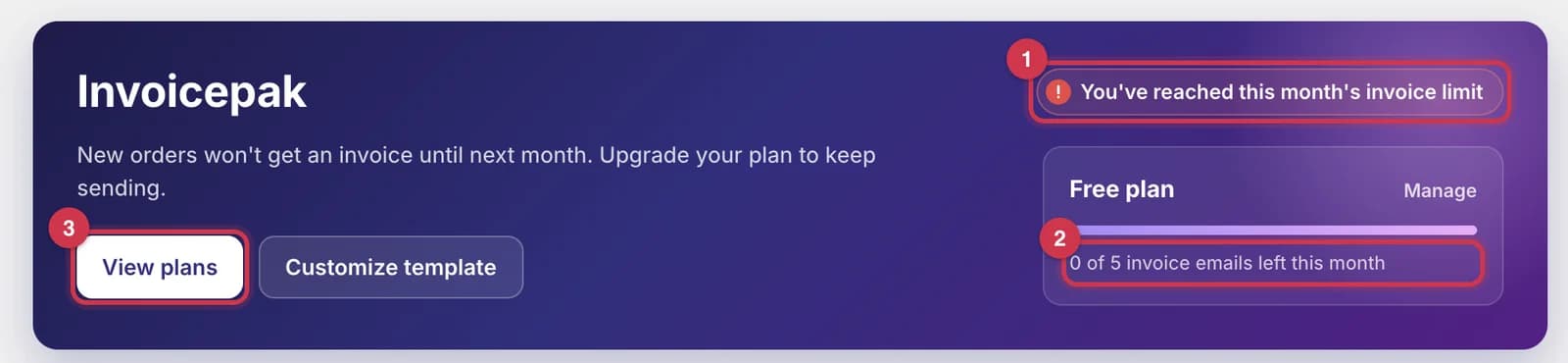
- The Dashboard status says You've reached this month's invoice limit.
- The usage line shows 0 of … invoice emails left this month.
- Click View plans to open Billing and upgrade.
While you're at the limit:
- New orders get a Failed invoice instead of an email.
- Resend and Send invoice email are blocked.
- Download and Print still work, with no limit.
To catch up:
- Upgrade under Billing. The new limit applies straight away. See Change your plan.
- Go to Invoices, filter by Failed, and click Retry on each invoice from while you were at the limit.
If you wait for the 1st of next month instead, new orders are emailed again from then on. The invoices that failed while you were at the limit aren't sent by themselves. Retry them yourself.
Bounced emails and spam complaints
To protect your store's email reputation, Invoicepak stops emailing an address when:
- an invoice email to it bounced permanently, for example because the address doesn't exist, or
- the customer marked an invoice as spam.
A temporary bounce, such as a full mailbox, doesn't block the address.
After that, every invoice to that address fails, and Resend shows: This customer's address bounced or marked a previous invoice as spam, so it won't be emailed again. The block applies only to your store, and it applies to every order with that email address.
What you can do:
- The address had a typo? Correct the customer's email on the order in Shopify, then click Retry. The new address isn't blocked.
- The customer still needs the invoice? Download the PDF from Invoices and send it from your own email, or print it.
- Want an address unblocked? You can't unblock it in the app. Ask the customer to check their address and spam settings, then contact Invoicepak support.
My customer didn't get the invoice
- Find the invoice on the Invoices page by searching for the order number.
- No invoice? See When invoices are created.
- Failed? See Fix a failed invoice.
- Pending or Processing? Wait a few minutes. Invoicepak tries again by itself.
- Sent? Carry on below.
- Check the address. The invoice was sent to the email on the order when it was placed. If that was wrong, fix it on the order. Because Resend uses the address saved with the invoice, download the PDF and send it yourself.
- Ask the customer to check spam or junk, and to look for an email from your store name with the subject you set, such as
Invoice #1001 from Acme Coffee. - Send it again with Resend.
- Fewer emails in spam: on Premium, send from your own email domain.
When invoices are created
Invoicepak creates an invoice when an order is created in Shopify, as long as Send invoices automatically is on. This includes:
- online store and other sales channel orders
- orders you create in the Shopify admin, and draft orders once they're completed
- unpaid orders, such as manual payment methods
- test orders
| Situation | What happens |
|---|---|
| Orders placed before you installed Invoicepak, or while automatic sending was off | No invoice. Open the order and use More actions → Send invoice email, or Print → Invoicepak. See Invoices from Shopify Orders. |
| You edit an order after the invoice was sent | No new email is sent. When you Resend, download or print, the PDF is created again from the order as it is now. |
| You refund or cancel an order | No new email. Invoicepak doesn't create credit notes. |
| The order is paid later | No new email. The invoice was already sent when the order was created. |
Invoice numbers
The invoice number is the Shopify order number. Order #1001 gets Invoice No.#1001. You can't set a separate invoice numbering sequence.
To use the order number elsewhere, use {{order.number}} in the email Subject, Message body or PDF file name. See the Variables reference.
If you change your order number prefix or suffix in Shopify (Settings → General → Order ID format), new invoices use the new format.
Languages, currencies and dates
Languages
Invoicepak, its starter templates, and the fixed parts of the email (such as the order line and the "Thank you," sign-off) are in English only. You can still invoice in another language:
- The invoice PDF: open the template in the editor and retype its labels, such as Subtotal or Bill to, in your language. See Change text.
- The email: write the Subject and Message body in your language (Basic or higher). See Write the subject and message.
Currencies
Amounts are shown in the order's currency, with its symbol or code, for example $48.50 or €42.00.
Dates
Dates on the PDF use a short English format, such as Oct 6, 2026. The {{order.date}} variable gives a technical date instead. See Can I format the order date?
Uninstalling Invoicepak
When you uninstall Invoicepak:
- Invoices stop being created and sent straight away.
- Shopify stops charging you for your plan.
- The Print and Send invoice email actions disappear from your orders.
- Your settings, templates and invoice history are kept for about 48 hours. Reinstall within that time and everything is still there.
- After that, Shopify asks Invoicepak to delete your store's data, and it's permanently deleted. If you added your own sending domain, it's removed too.
More questions
Can customers download their invoice from their account or order status page?
No. Customers receive the invoice by email, with the PDF attached when Attach PDF is on.
Can I send an invoice to a different email address?
Not to a one-off address. Change the customer's email on the order, then use Retry (for a failed invoice) or Send invoice email on the order. Or download the PDF and send it yourself.
Can I add a CC or BCC?
No. To keep a copy, download the PDF, or set your Reply-to email so customer replies come to you.
Do downloads and prints count towards my limit?
No. Only invoice emails count. See What counts towards your limit.
Why does my invoice show sample bank details?
The Minimal starter template includes example payment details. Edit or delete that block in the editor. See Replace the sample payment details in Minimal.
My logo or company details don't show on the invoice.
Branding fields need Basic or higher. Check them under Settings → Business details, and that they're switched on under Invoice PDF → Show on invoice. See Business details and Show on invoice.
I changed my template. Will old invoices change?
Emails already sent don't change. Any PDF you download, print or resend from now on uses your current default template and settings.
Can I delete an invoice?
Archive it, then delete it permanently from Archived invoices. See Delete an invoice permanently.
How do I get help?
Contact Invoicepak support through the app's listing in the Shopify App Store. Include your store address, the order number and what you see.
Last updated