Business details
Add your logo, company name, contact details and tax or VAT number in Invoicepak Settings, and choose which of them appear on your invoices.
Business details is where you add your logo, company name, contact details and tax number. Invoicepak uses them in the header of every invoice PDF and in the emails your customers receive.
Open Business details
- In the Shopify admin sidebar, under Invoicepak, click Settings.
- Scroll down to the Business details section. It's below Customer email.
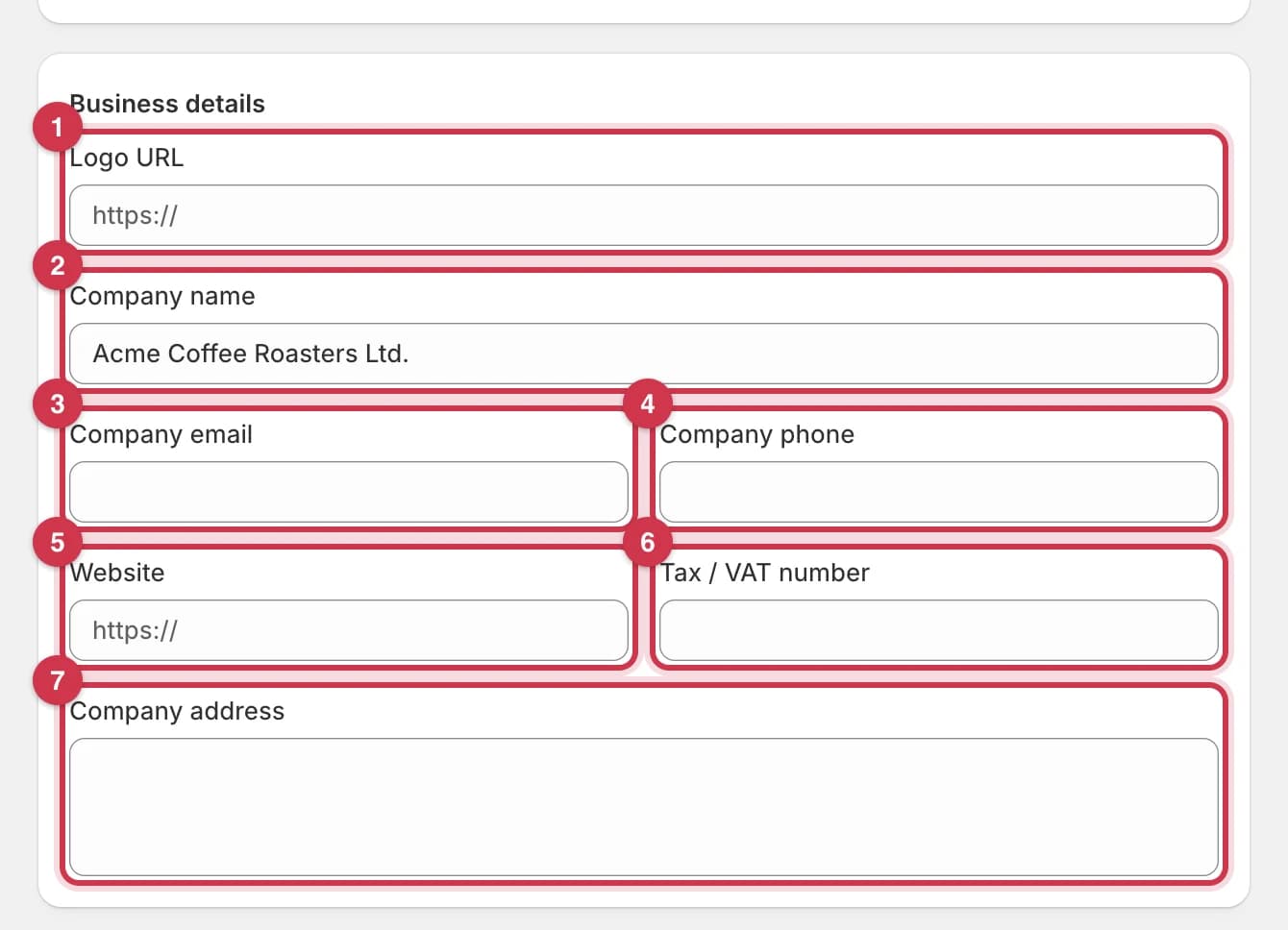
Every field at a glance
Every field is optional. If you leave one empty, Invoicepak uses your Shopify store's details where it can.
| Field | What it does | When empty |
|---|---|---|
| Logo URL | The web address of your logo image. The logo appears at the top of the invoice. When the address is valid, a small preview shows next to the field. | No logo. Your company name is shown instead. |
| Company name | Your business name. It appears at the top of every invoice, as the sender name on invoice emails, and wherever you use {{shop.name}}. Up to 200 characters. | Your Shopify store name |
| Company email | Your business email address. It can be printed on the invoice, and replies to invoice emails go here unless you set a Reply-to email. It's also used for {{shop.email}}. | Your Shopify store email |
| Company phone | Your business phone number, printed on the invoice. Up to 50 characters. | Not shown |
| Website | Your website address, printed on the invoice. | Not shown |
| Tax / VAT number | Your tax or VAT registration number, printed on the invoice as Tax ID: followed by your number. Up to 100 characters. | Not shown |
| Company address | A business address, up to 500 characters. See the warning below. | Your Shopify store address |
Phone, email, website and tax number only appear on the invoice when you tick them under Invoice PDF → Show on invoice. See Choose which details appear on the invoice.
Fill in your business details
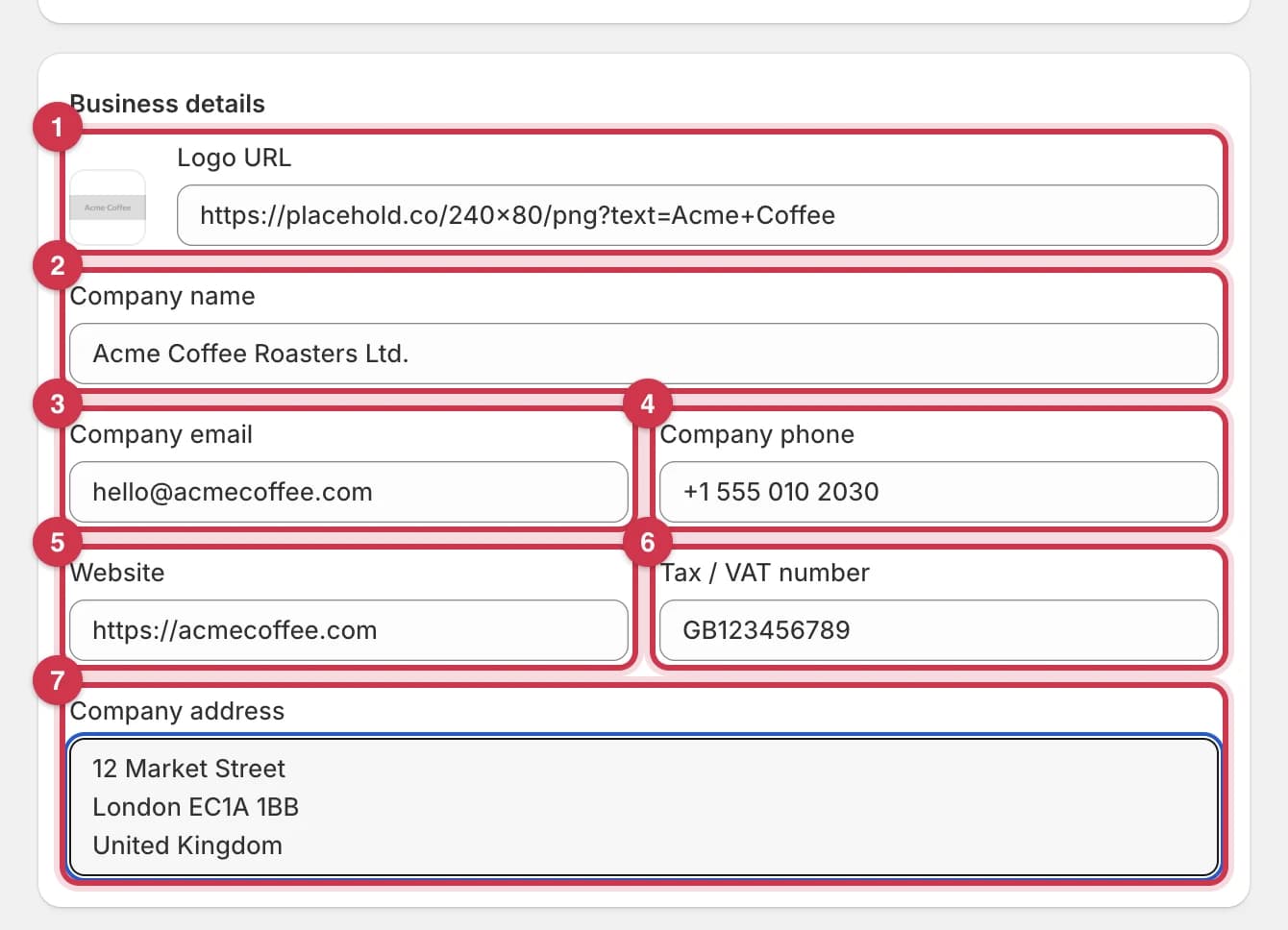
- In Logo URL, paste the full web address of your logo, starting with
https://. When the address is valid, a preview of your logo appears to the left of the field. - In Company name, type your business name as you want customers to see it, for example
Acme Coffee Roasters Ltd. - In Company email, type the address you want customers to contact, for example
hello@acmecoffee.com. - In Company phone, type your phone number, including the country code if you sell abroad.
- In Website, type your website address, starting with
https://. - In Tax / VAT number, type your registration number, for example
GB123456789. - In Company address, type your address. Press Enter to start a new line.
As soon as you change a field, the save bar appears at the top of the page.
Save or discard your changes
When you have unsaved changes, a bar appears at the top of the page with Save and Discard buttons.

Save
- Click Save.
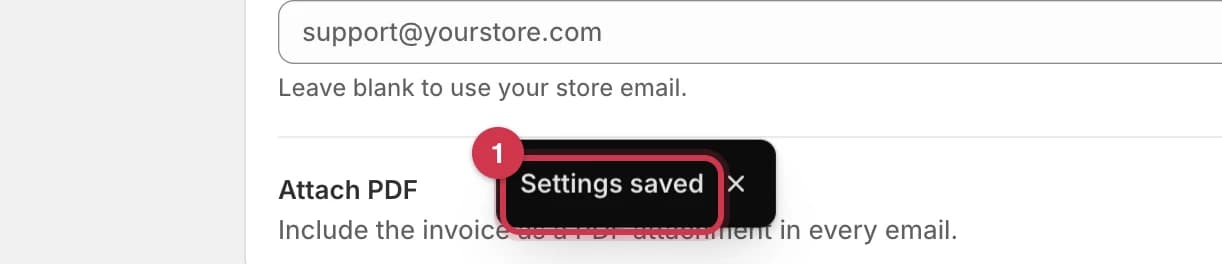
You'll see a Settings saved message at the bottom of the screen, and the save bar closes. New invoices use your details straight away.
Discard
- Click Discard.
Every field goes back to what was last saved, and the save bar closes. Discard affects every unsaved change on the Settings page.
If a field can't be saved
If a field has a mistake, it's outlined in red with a message under it. A red banner at the top of the page also says Some settings couldn't be saved. Fix the highlighted fields and try again.
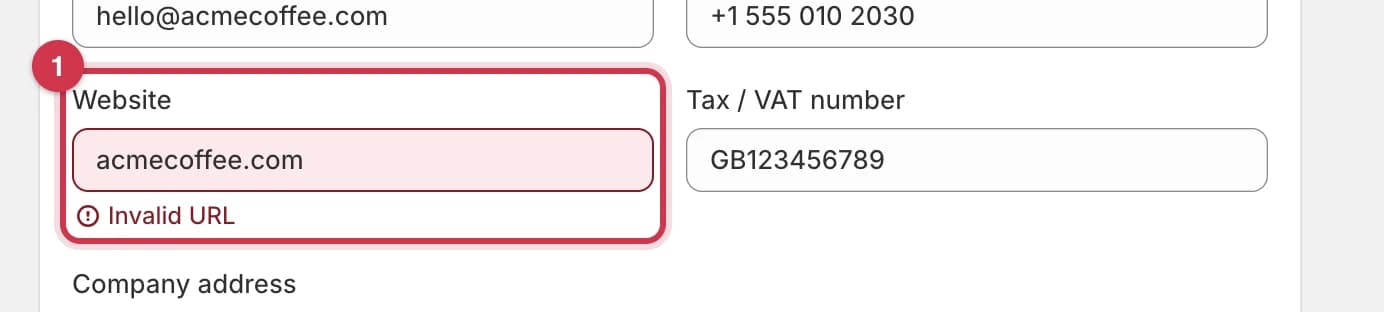
- Read the message under the field and correct the value.
- Click Save again.
| Field | Common mistake | How to fix it |
|---|---|---|
| Logo URL | The address doesn't start with http:// or https:// | Paste the full address, including https:// |
| Company email | The address is missing @ or a domain | Type a full address like hello@acmecoffee.com |
| Website | You typed acmecoffee.com | Add https:// at the start: https://acmecoffee.com |
| Company name, Company phone, Tax / VAT number, Company address | The text is too long | Shorten it to 200, 50, 100 or 500 characters |
Which plan do I need?
Company name works on every plan, including Free. Logo URL, Company email, Company phone, Website, Tax / VAT number and Company address need the Basic plan or higher.
On the Free plan, the locked fields are greyed out and a message at the top of the section says Logo, contact details, and tax number are on Basic and higher.
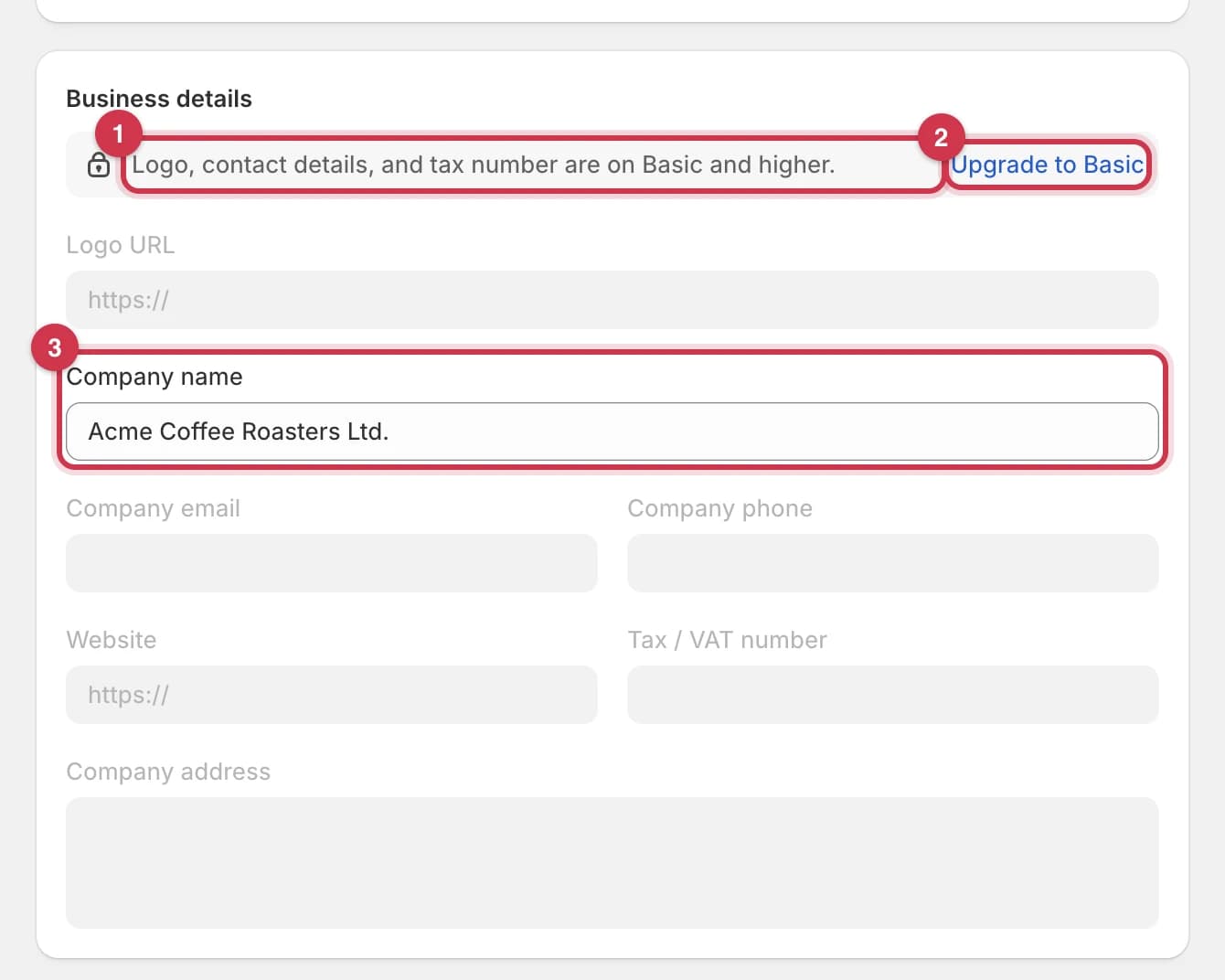
- The message explains which fields are locked.
- Click Upgrade to Basic to open Billing and choose a plan.
- Company name stays editable on every plan.
Choose which details appear on the invoice
Filling in a field doesn't always print it. The Show on invoice checkboxes in the Invoice PDF section of Settings decide what appears in the invoice header.
| Business detail | Checkbox under Show on invoice | Ticked by default? |
|---|---|---|
| Logo | Store logo | Yes |
| Address | Store address | Yes |
| Phone | Store phone number | No |
| Store email address | No | |
| Website | Store website | No |
| Tax / VAT number | Tax / VAT number | No |
Your company name is always shown. If a checkbox is ticked but the field is empty, that line is skipped.
Common questions
Why isn't my logo showing on the invoice?
Check these in order:
- Store logo is ticked under Invoice PDF → Show on invoice.
- The Logo URL opens the image when you paste it into a new browser tab.
- The image is a PNG or JPG and is under 5 MB.
- Your template doesn't already have its own image in the logo area.
- You're on the Basic plan or higher.
Why doesn't my phone number, website or tax number show on the invoice?
These are off by default. Tick them under Invoice PDF → Show on invoice and click Save.
I changed my details. Will old invoices update?
Yes, when they're downloaded, printed or resent. Invoicepak builds the PDF from your current details each time. An email that was already sent doesn't change.
What name do my customers see on the invoice email?
Your Company name. If it's empty, they see your Shopify store name.
Where do customer replies go?
To the Reply-to email under Customer email, if you've set one. If not, they go to your Company email, and if that's empty, to your Shopify store email.
Why is the address on my invoice different from Company address?
Invoices currently use the address in your Shopify store details. Update it under Settings → Store details in the Shopify admin.
Can I use these details in my email subject or message?
Yes. {{shop.name}} and {{shop.email}} use your Company name and Company email. See the Variables reference.
Last updated