Create and manage templates
Preview the six starter invoice templates, create your own, and duplicate, publish, set as default, move to draft or delete templates in Invoicepak.
A template is the design of your invoice PDF. Invoicepak comes with six ready-made templates. You can preview them, choose which one is your default, make copies, and create your own.
This page covers the Templates page. Changing a template's design happens in the template editor.
The Templates page
In the Shopify admin sidebar, under Invoicepak, click Templates.
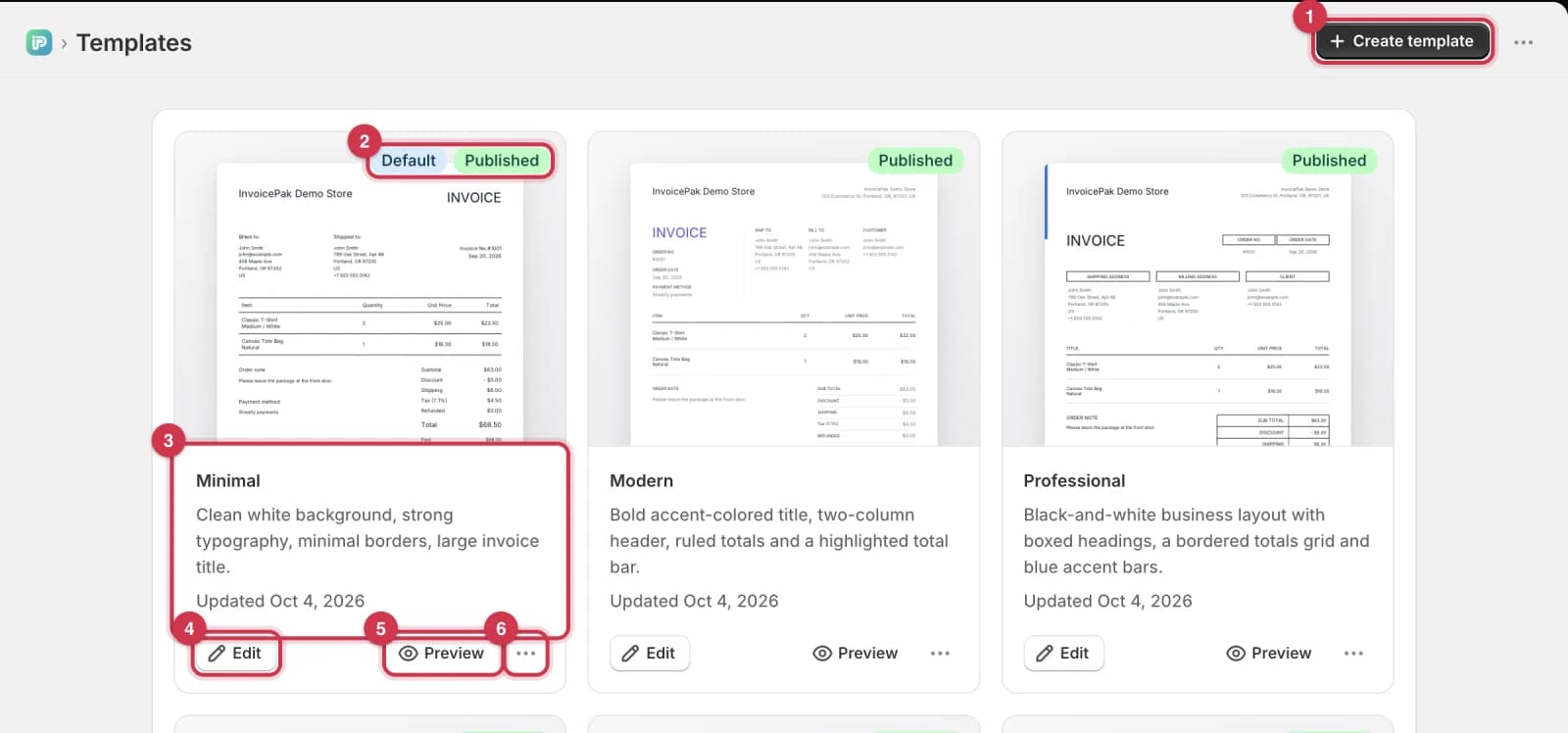
- Create template makes a new template. See Create a template.
- The badges show the template's status: Default, Published or Draft. See Draft, Published and Default.
- The template's name, a short description, and the date it was last changed.
- Edit opens the template in the editor. Clicking the template's picture does the same.
- Preview shows the template as a full-size PDF. See Preview a template.
- … opens more actions. See More actions menu.
Draft, Published and Default
| Badge | What it means |
|---|---|
| Draft | The template is a work in progress. It can't be your default template, so it isn't used for invoices. New templates and copies start as drafts. |
| Published | The template is ready to use. Any published template can be your default. |
| Default | The template used for every invoice: automatic emails, emails you send from an order, printing, downloads and previews. Only one template is the default, and it's always published. |
The six starter templates
| Template | Look |
|---|---|
| Minimal | Clean white background, strong typography, minimal borders, large invoice title. This is the default after you install. |
| Modern | Bold accent-colored title, two-column header, ruled totals and a highlighted total bar. |
| Professional | Black-and-white business layout with boxed headings, a bordered totals grid and blue accent bars. |
| Elegant | Serif typography with green accent rules, a shaded line items table and a highlighted amount due. |
| Bold | Purple table header and total bar, shaded line items and a clean two-column header. |
| Compact | Monochrome serif layout with a heavy header rule, a black-headed gridded table and a dark total bar. |
All six are published when you install, and they're available on every plan.
Preview a template
On the template's card, click Preview. The template opens as a PDF filled with a sample order ("Invoicepak Demo Store", customer "John Smith"), so you can see how it looks before using it. Your Invoice PDF settings are applied, such as page size and what's shown on the invoice.
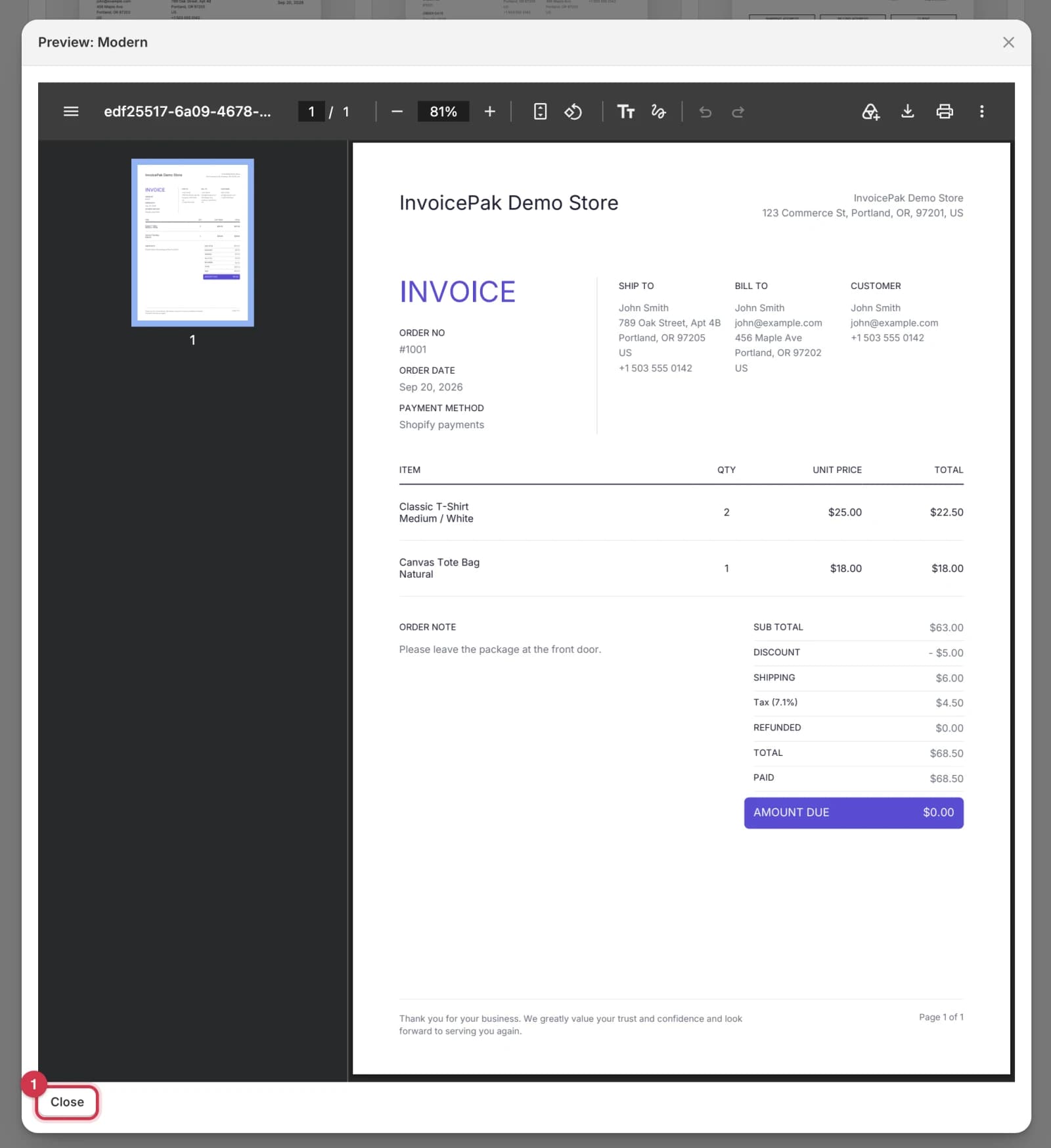
Use the toolbar at the top of the PDF to zoom, download or print it.
- Click Close when you're done.
The picture on each card is a small version of the same preview.
Edit a template
Click Edit on the template's card, or click the template's picture. The template opens in the editor.
Create a template
Click Create template at the top of the Templates page.
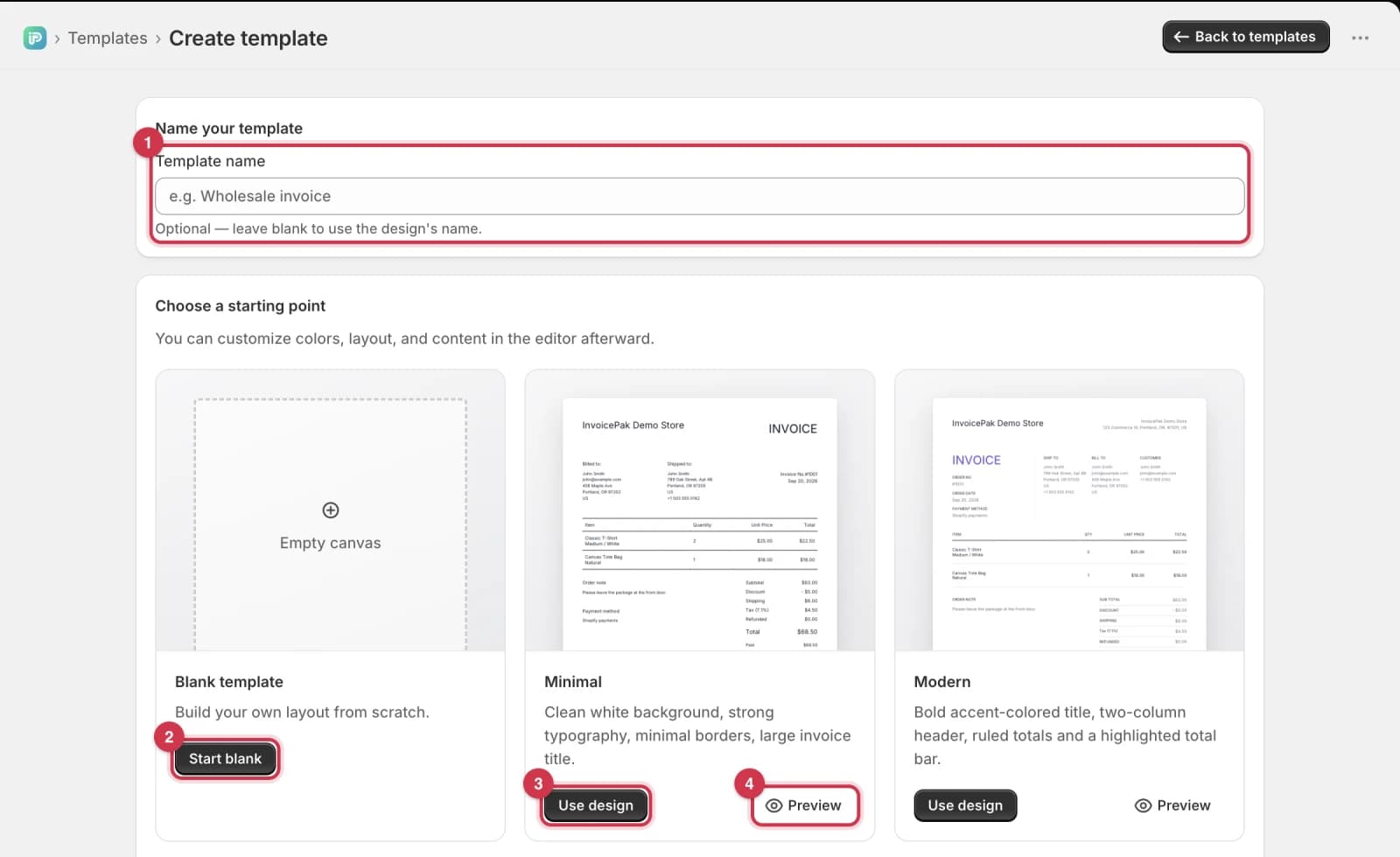
- In Template name, type a name, for example "Wholesale invoice".
- To begin with an empty page, click Start blank.
- Or, to start from a copy of one of the six designs, click Use design under it.
- To see a design full size first, click Preview under it.
Invoicepak creates the template as a Draft and opens it in the editor. When it's ready, publish it and, if you want, set it as your default.
More actions menu
Click … on a template's card to see more actions. The menu shows different actions depending on the template's status.
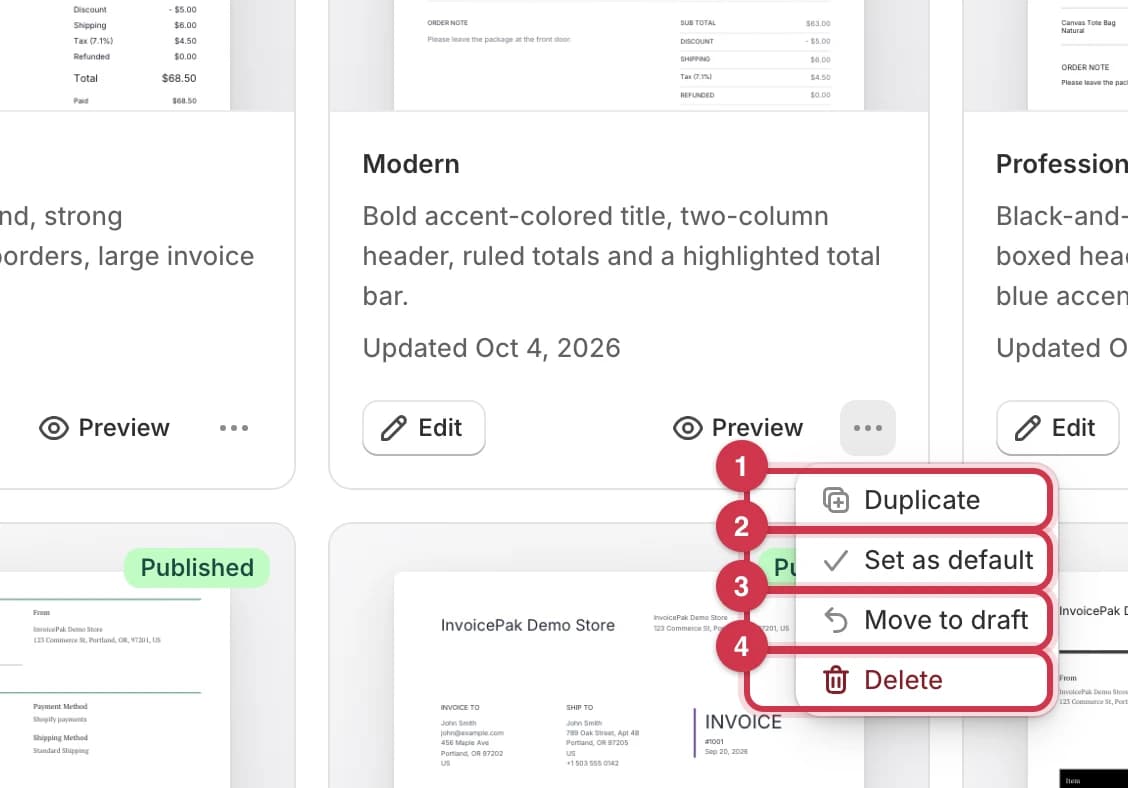
- Duplicate
- Set as default. Not shown if it's already the default.
- Move to draft
- Delete
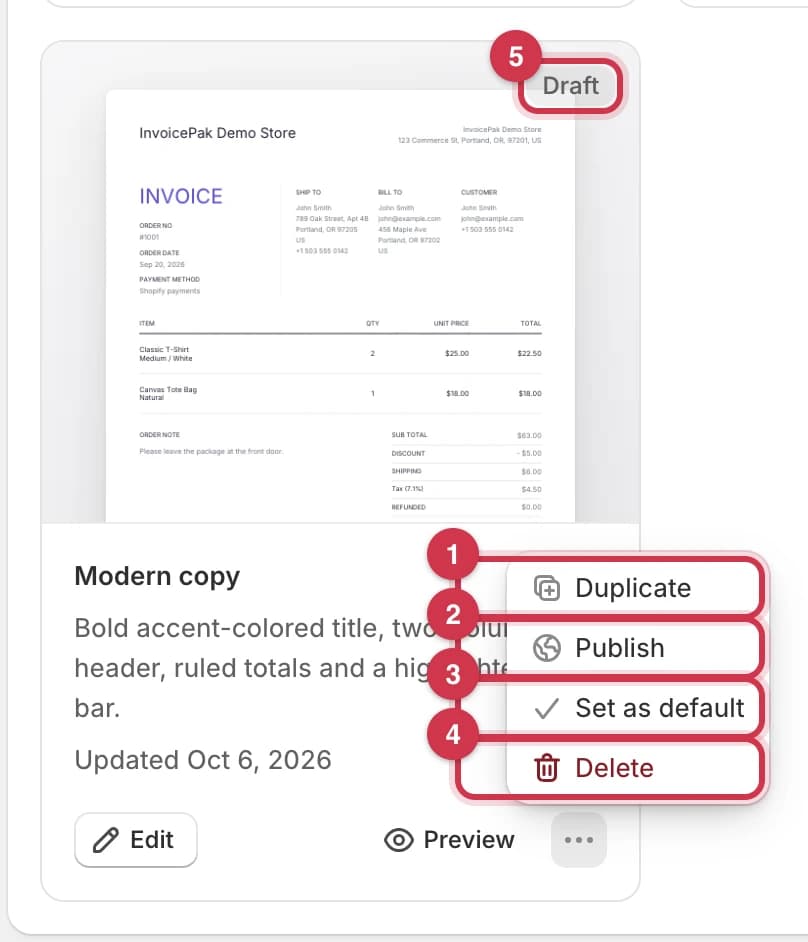
- Duplicate
- Publish
- Set as default
- Delete
- The Draft badge shows the template isn't published.
Duplicate
Makes a copy of a template, so you can try changes without touching the original.
- Click … on the template's card.
- Click Duplicate.
The copy appears at the end of the list as a Draft, named after the original with "copy" added, for example "Modern copy". Copying again gives "Modern copy 2", and so on. A copy counts towards your template limit.
Publish
Makes a draft template ready to use.
- Click … on the draft template's card.
- Click Publish.
The badge changes to Published. Publishing doesn't make it your default.
Set as default
Makes this the template used for all your invoices.
For a published template, click … on the template's card, then click Set as default. The Default badge moves to this template straight away.
For a draft template, Invoicepak asks you to confirm, because the template must be published first:
- Click … on the draft template's card.
- Click Set as default.
- Click Publish and set as default to confirm, or Cancel to go back.
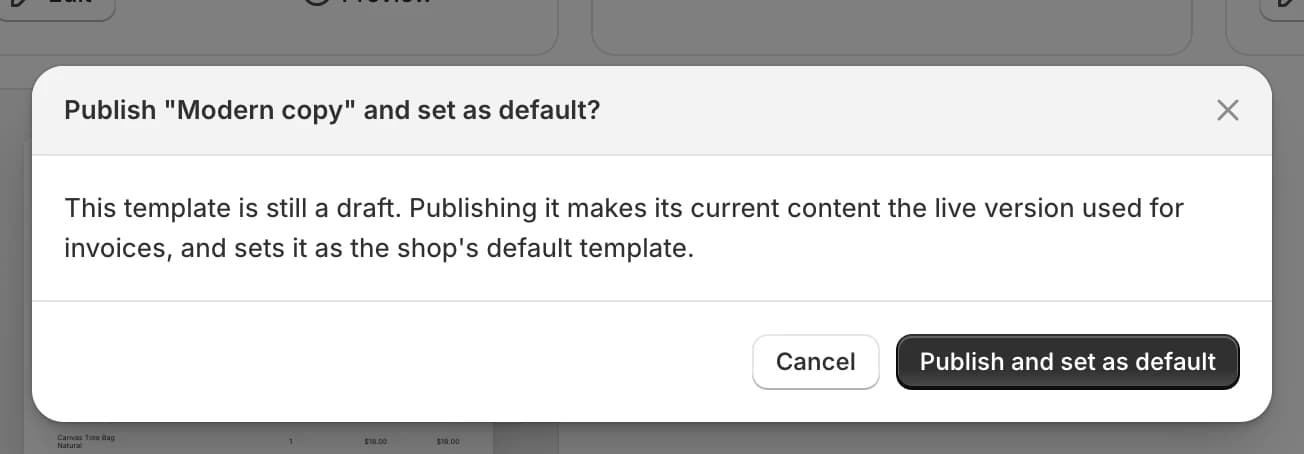
The template is published and becomes your default in one step.
You can also choose the default template in Settings, under Invoice automation.
Move to draft
Takes a published template out of use while you work on it.
- Click … on the template's card.
- Click Move to draft.
- Click Move to draft to confirm, or Cancel to go back.
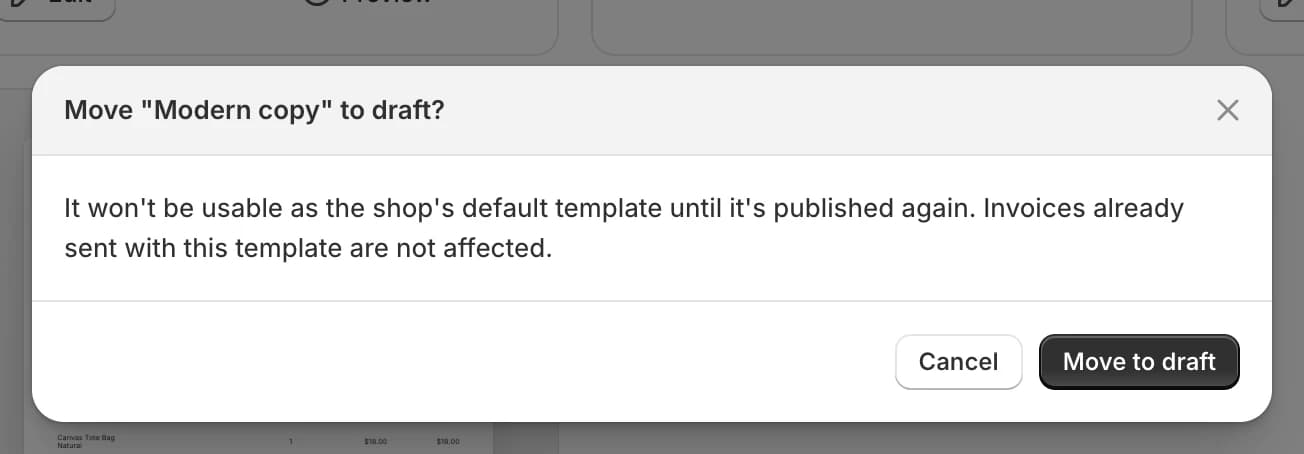
Invoices already sent aren't affected.
You can't move your default template to draft. If you try, you'll see Set another template as default before unpublishing this one. Set a different template as default first.
Delete
Removes a template for good.
- Click … on the template's card.
- Click Delete.
- Click Delete to confirm, or Cancel to go back.
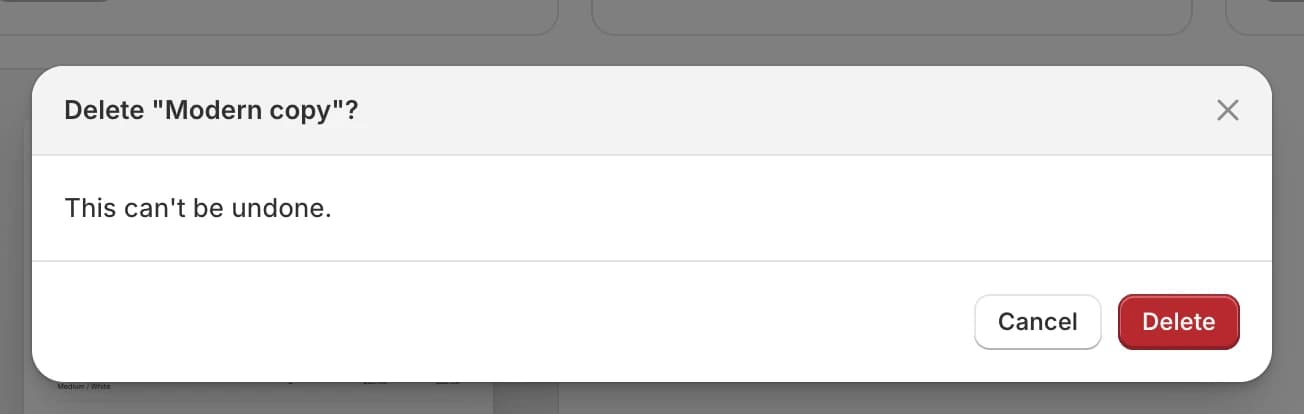
You can't delete your default template. If you try, you'll see this message at the top of the page:

- Set a different template as default, then delete this one.
Invoices already sent with a deleted template aren't affected. When you download, preview or resend them later, they use your current default template.
How many templates can I have?
The limit counts all your templates, including the six starter templates and any copies.
| Free | Basic | Pro | Premium | |
|---|---|---|---|---|
| Starter templates | 6 | 6 | 6 | 6 |
| Extra templates you create or copy | – | 3 | Unlimited | Unlimited |
| Total templates | 6 | 9 | Unlimited | Unlimited |
On the Free plan you already have six templates, so Create template shows this message, and the Start blank and Use design buttons are greyed out:
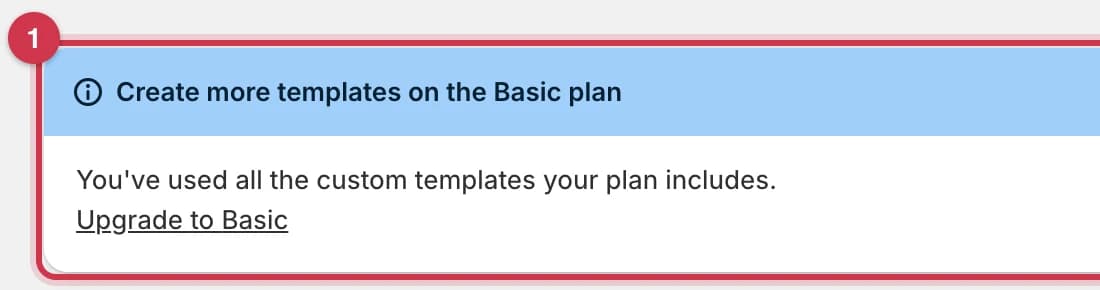
- Click Upgrade to Basic to choose a plan.
Duplicate shows Your plan allows 6 template(s). Upgrade your plan to create more. at the top of the page.
Common questions
Why isn't my new template used for invoices?
New templates start as drafts. Publish it, then set it as your default.
Which template do my customers get?
Your Default template, for every invoice: automatic emails, emails you send from an order, printing and downloads.
Why does the preview show "Invoicepak Demo Store" and "John Smith"?
Previews use a sample order so you can see every part of the template. Real invoices use your store's and the customer's details.
I deleted a starter template by mistake. Can I get it back?
Not as it was, but you can make a new one from the same design: click Create template, type a name, and click Use design under that design.
Does editing a template change invoices already sent?
Emails already sent don't change. Downloads, previews and resends always use your current default template.
Can I rename a template?
Yes, in the template editor. See Rename the template.
Last updated